- BoostSolutions
-
Products
-
- Microsoft Teams
- HumanLike Alert Reminder
- View All Apps
- Pricing
- Support
- Company
BoostSolutions’ Password Change & Expiration allows users to change their own passwords from SharePoint without administrator intervention. This product also has sending expiration notification emails to warn users before their passwords expire, sending confirmation emails after users have successfully changed their passwords and other features. Also, users can identify the domain and account names when changing their password. This article will demonstrate how to show domain and account in the web part.
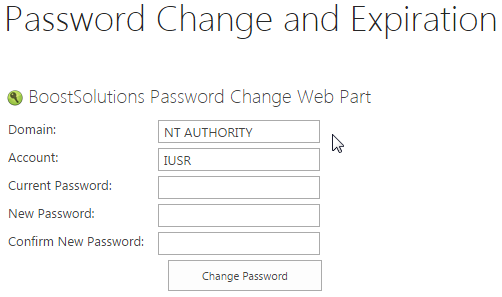
Users will be able to specify the domain and account name before changing the password.
The web part is added to the SharePoint site. For this article we added it to the site page called Password Change and Expiration. You can check our other article to get more information on how to add the web part.
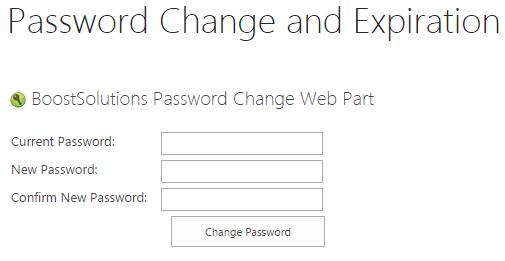
Download the trial version of Password Change & Expiration and install it to your SharePoint server.
Navigate to the Site page created above.
Find Site Settings menu on upper right corner and click on Edit Page.
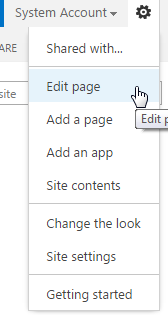
You will see the web part changed to edit mode after clicking on Edit Page.
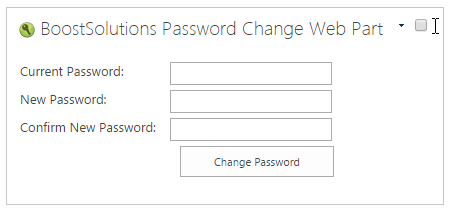
Next step, click on small black triangle on the right side of the web part, next to the check box. After clicking you will see the drop down menu appear.
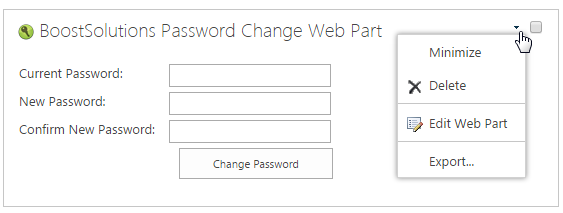
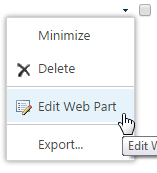
Click on the Edit Web Part option.
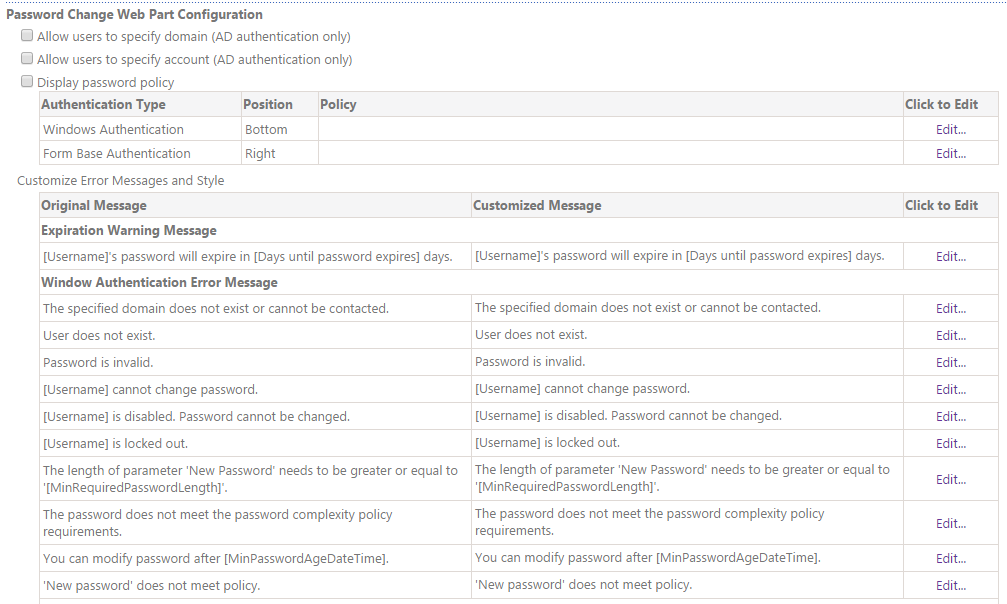
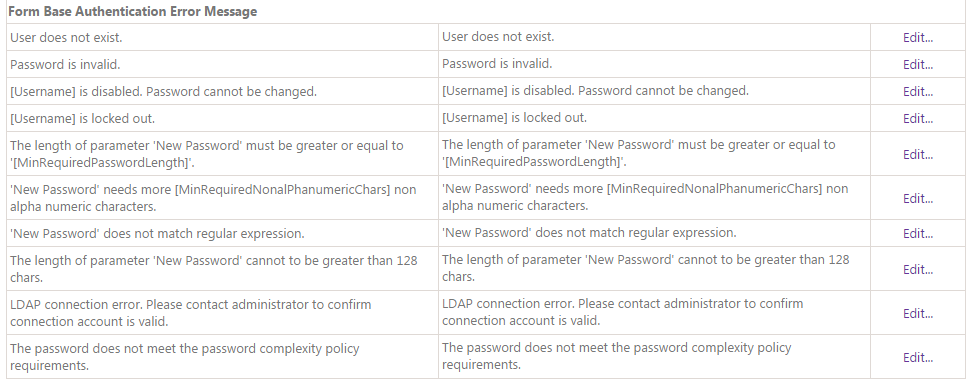
Following Password Change Web Part Configuration table will appear under the web part after clicking on the option.
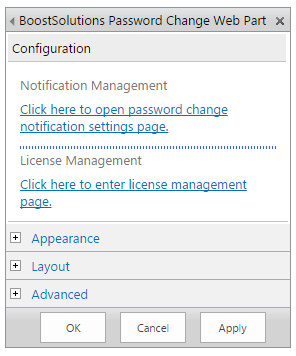
You will also see the configuration settings box on the right side of the web part appear.
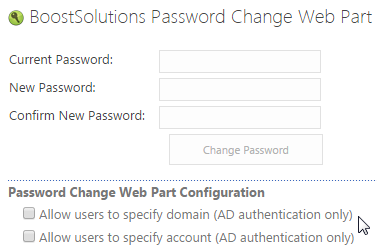
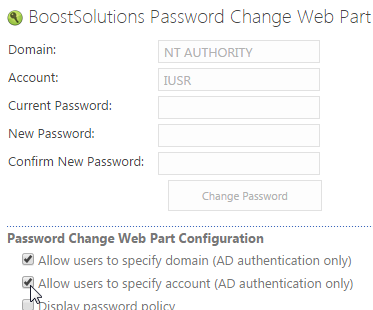
Let’s focus on Password Change Web Part Configuration table that appeared under the Web Part. You will see two options - Allow users to specify domain (AD authentication only) and Allow users to specify account (AD authentication only) - right under the title.
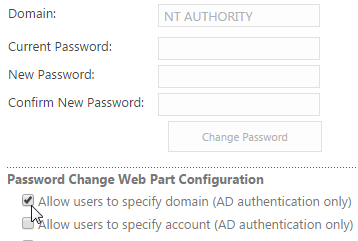
Let’s check both of them. And you will see the both Domain and Account boxes appear after checking them.
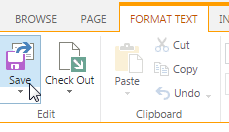
Navigate to FORMAT TEXT section in the ribbon, find Save button in the Edit group and click on it to save the changes.
You will see the changes saved as following.
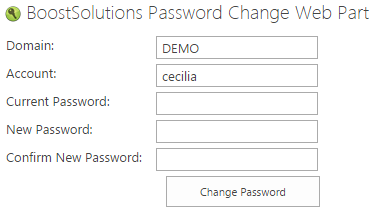
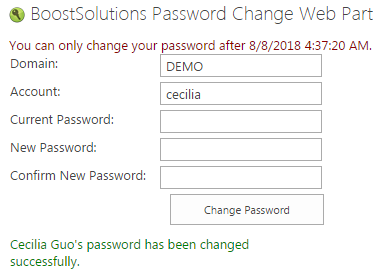
Now let’s test with another user if it works. Let’s log in as Cecilia Guo, go to the Site Page where we just made changes in the web part. After opening the page, you will see the Domain and Account section are already filled for you as following.
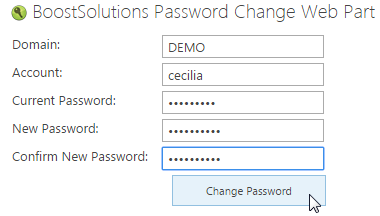
Let’s fill in the Current Password, New Password and the Confirm New Password sections and click Change Password.
You will see the following message appear after clicking on the button.
Now, let’s check if it is really successful. Log in to the site as Cecilia Guo after typing in the new password.
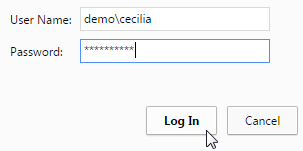
You will successfully log in to the site.