- BoostSolutions
-
Products
-
- Microsoft Teams
- HumanLike Alert Reminder
- View All Apps
- Pricing
- Support
- Company
BoostSolutions’ Password Change & Expiration allows users to change their own passwords from SharePoint without administrator intervention. This web part also has sending expiration notification emails to warn users before their passwords expire, sending confirmation emails after users have successfully changed their passwords and other features. In this article we will show you how to add this web part to the SharePoint site.
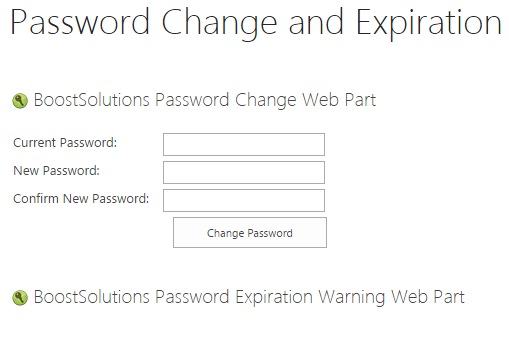
Both web parts are added to the page and ready to use.
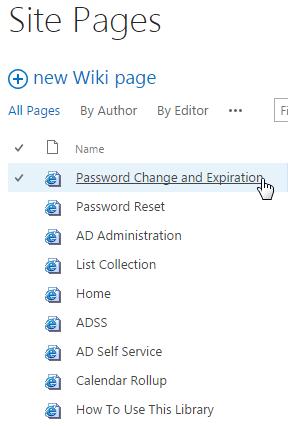
The web part can be added to most of the sites in the farm. But in this article we will create a separate SharePoint site page. We will call it Password Change and Expiration.
Download the trial version of Password Change & Expiration and install it to your SharePoint server.
Navigate to Site page prepared above.
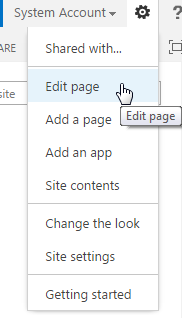
Click on Edit Page in the Site Actions menu.
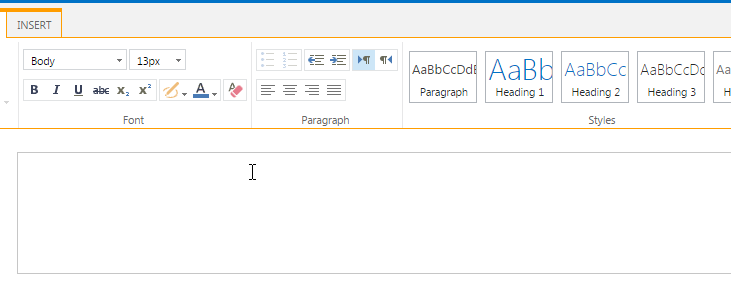
After clicking the FORMAT TEXT and INSERT tabs will appear in the ribbon as following.
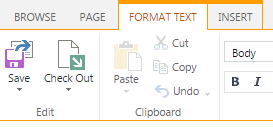
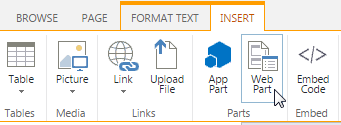
Choose INSERT tab and click on Web Part button in the Parts group.
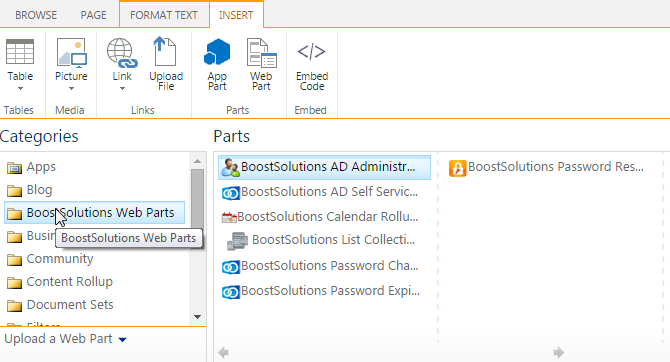
After clicking the Categories list will appear under the ribbon. Choose the BoostSolutions Web Parts in the Categories list. And then, you will see the installed BoostSolutions web parts in the Parts group as following.
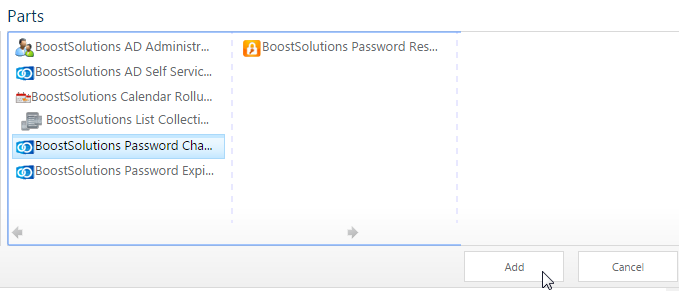
Choose the Password Change web part and click on Add button.
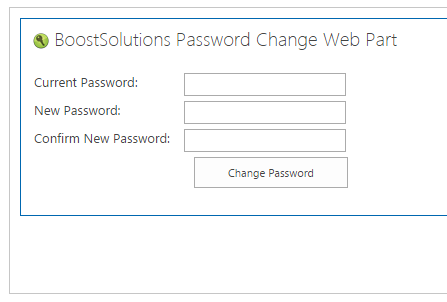
You will see the web part appear in the page after clicking on Add button.
Repeat the steps 5 and 6. But next choose the Password Expiration Warning web part to add to the page.
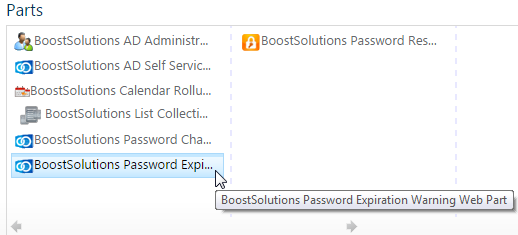
It will be added to the page after clicking on Add button again.
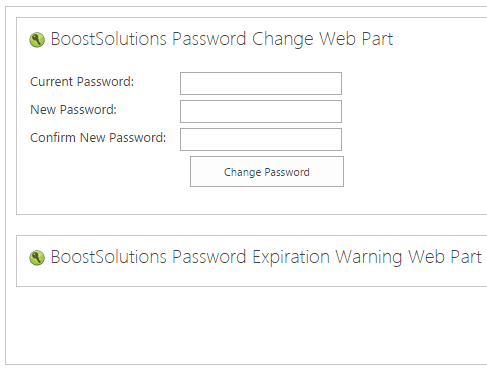
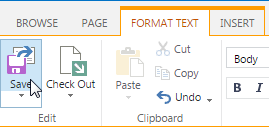
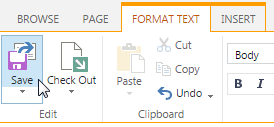
In the FORMAT TEXT tab, Edit group click on Save to save the changes in the page.
You will see the result after clicking on it.
There are two ways to delete the web part from the page. Both are available when the page is in Edit Page mode. First one is to click on black triangle on the right side of the web part. And choose Delete.
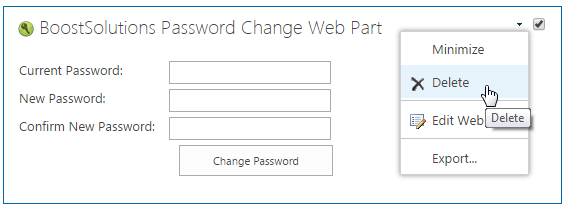
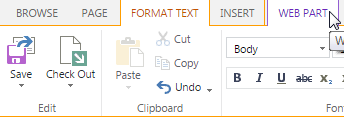
The second way is to click on the web part and you will see the WEB PART tab appear on the ribbon. Click on the tab and then click on Delete button in the State group.
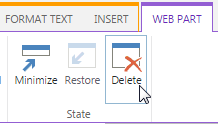
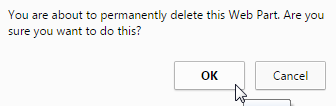
Both after step 13 and 14 the following warning will pop up on the top of the page. Click OK to confirm.
Repeat the step 13 or 14 to Delete Password Expiration Warning web part and click Save in the FORMAT TEXT tab, Edit group to save the changes in the page. You will see the result on the page.