- BoostSolutions
-
Products
-
- Microsoft Teams
- HumanLike Alert Reminder
- View All Apps
- Pricing
- Support
- Company
SharePoint Password Change & Expiration allows users to change their own passwords from SharePoint without administrator intervention. This product also has a feature that notifies the end users about their password expiration date. It both can be done on the web part and also by sending the email. In this article you will learn how to configure the notification email and the day when it will be sent.

The email has been sent to the addresses with the content that was specified in the settings.
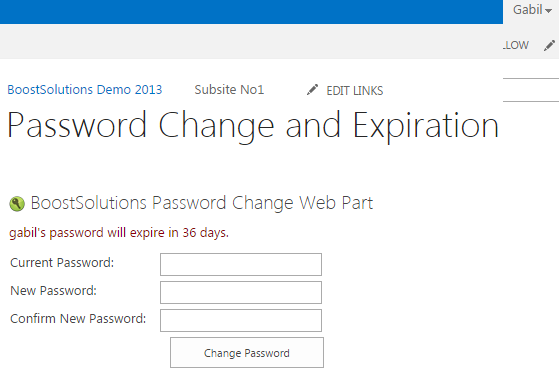
The web part is added to the SharePoint site. For this article we added it to the site page called Password Change and Expiration. Also, web application outgoing email server settings in SharePoint Central Administration or the custom SMTP settings in the Password Change settings must be configured. You can check our other articles to get more information on how to add the web part and configure the custom SMTP settings.
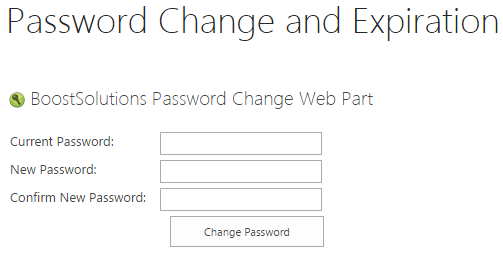
Download the trial version of Password Change & Expiration and install it to your SharePoint server.
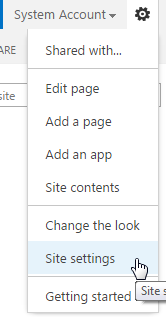
Click on the Settings menu on the upper right corner of the page and click on Site Settings.
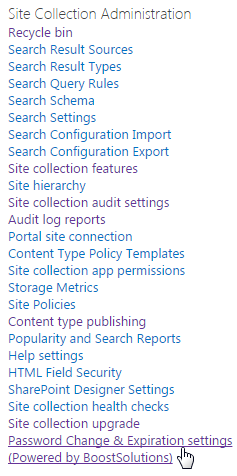
Find Password Change & Expiration settings in the Site Collection Administration group and click on it.
There is also another way to reach the Password Change Settings. First we need to go to the site where Password Change web part is added. Find Site Settings menu on upper right corner and click on Edit Page.
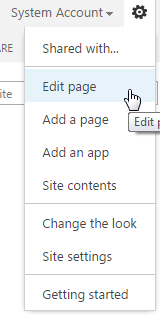
You will see the web part changed to edit mode after clicking on Edit Page.

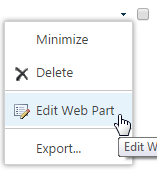
Next step, click on small black triangle on the right side of the web part, next to the check box. After clicking you will see the drop down menu appear. Click on Edit Web Part.
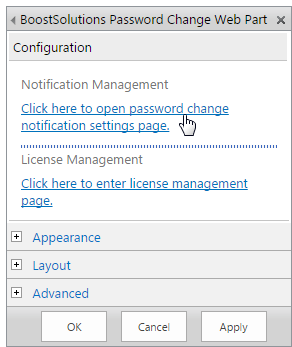
You will see the configuration settings box on the right side of the web part appear. Click on Click here to open password change notification settings page.
The Password Change Settings page will open after following the steps 3 and 7.
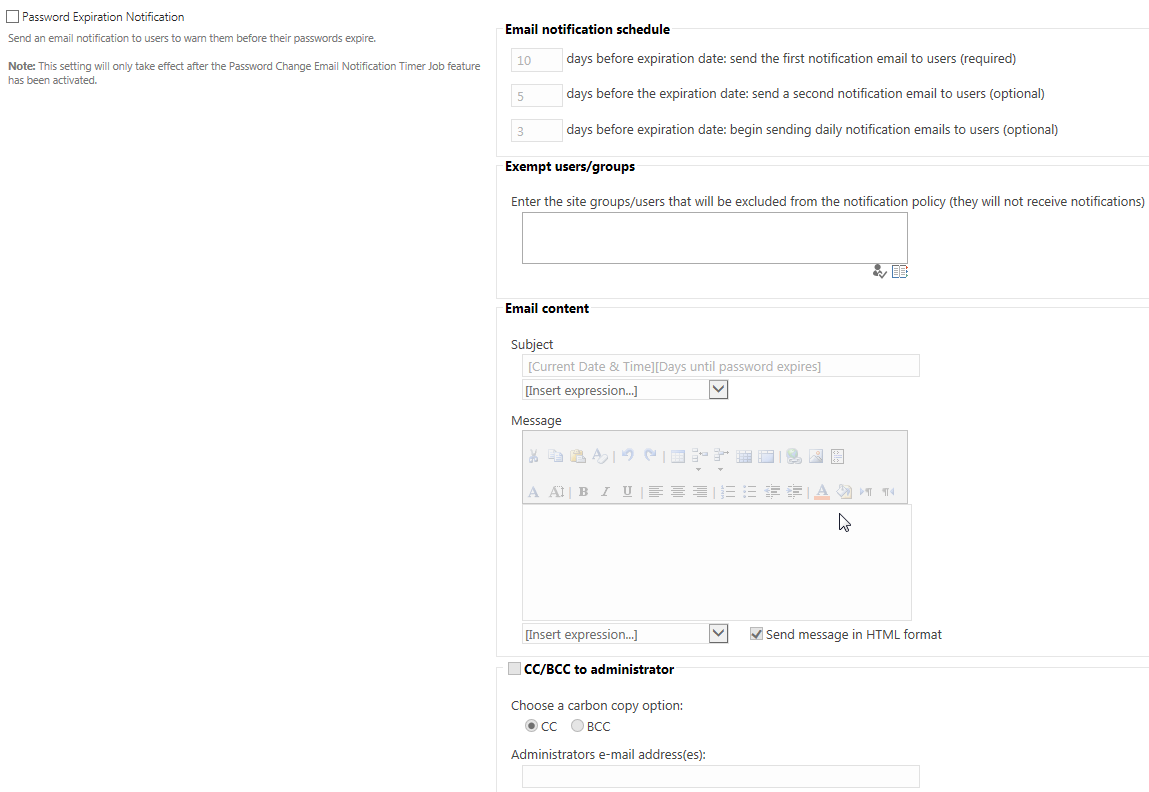
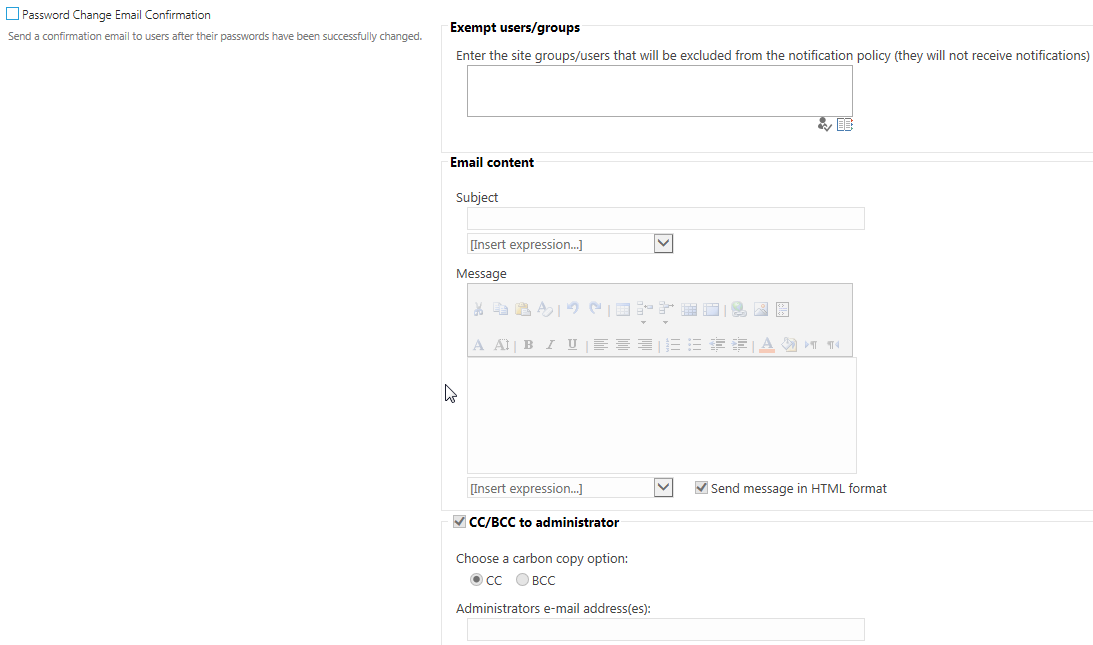
In this page we will only focus on Password Expiration Notification section. If we check the box next to the Password Expiration Notification and save the settings we will agree on sending the notification emails.

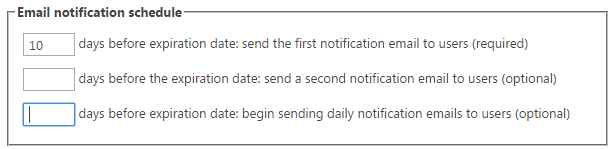
After it is enabled, we will be able to specify the notification schedule. There are 3 dates when the user can receive the email. Two of them are optional and one required. As default the days are 10 (required), 5 and 3 (both optional). We can empty the optional ones as following. The box with the default day of 5 is for sending the second notification email to users. The box with the default day of 3 is for sending the notification emails daily after the days has been reached.
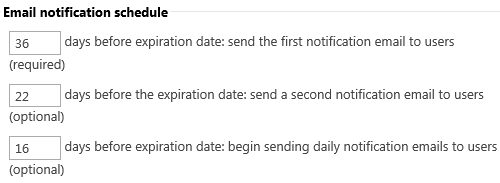
Also, let’s change the day number in the required box to 36, so we can check if Gabil will receive the notification email after we save the settings. The next two boxes will be 22 and 16 days respectively. After it reaches the 16th day, it will begin sending the emails daily.
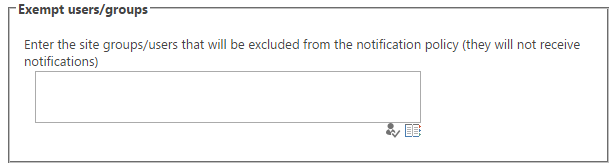
Next is Exempt users/groups part. We talked about this feature in another article more briefly. You can check it for more information. Simply speaking here we can identify who will not receive the email even if the number of expiration day is identified in the Email notification schedule.
Email content is the part where we will modify the email content.
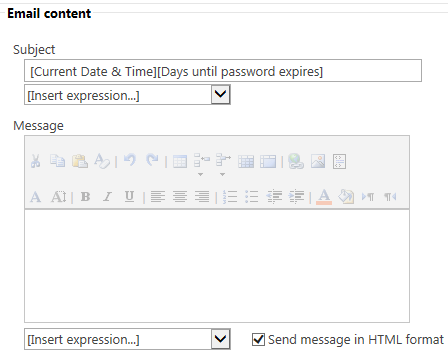
First we edit the subject of the email. We can use the expressions or just type our own words.
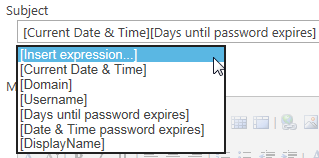
Let’s change it as following.

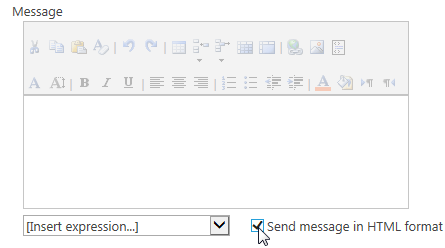
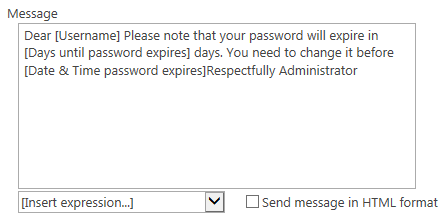
Next step is Message part. If you want the message to be sent in HTML format. Then check the box next to Send message in HTML format. When it is checked you will have more editing options.
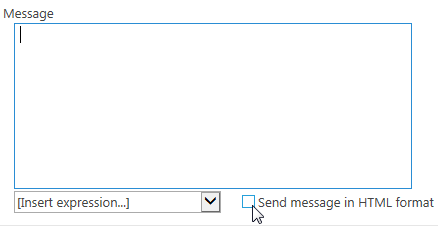
Let’s keep it unchecked and fill in the message content as following. We again will be able to use the expressions for the message content.
Lastly, we can decide whether CC or BCC emails will be sent to someone.
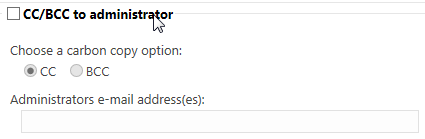
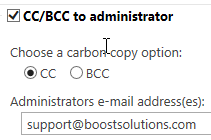
Let’s check it, choose CC and fill in the Administrators e-mail address (es) as following.
Now we can save the settings. Click OK to do it and wait for the expiration notification for Gabil. You will find the OK button both on the up and below right side of the page.
As you can see when Gabil has 36 days left for the password to expire, he received a notification email.
When Gabil has 22 days left for the password to expire, he received another notification email as following.
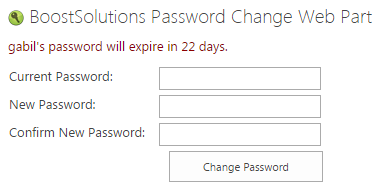
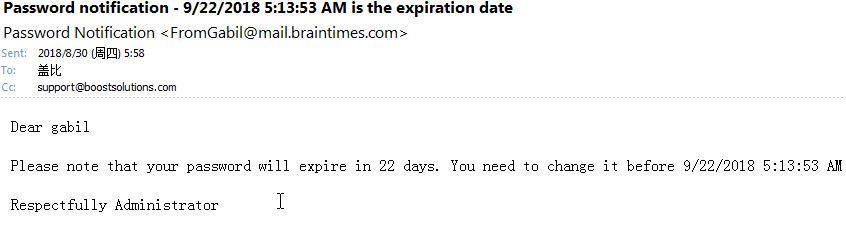
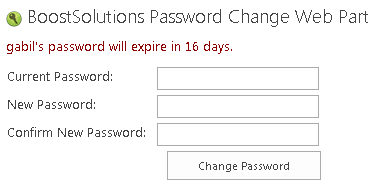
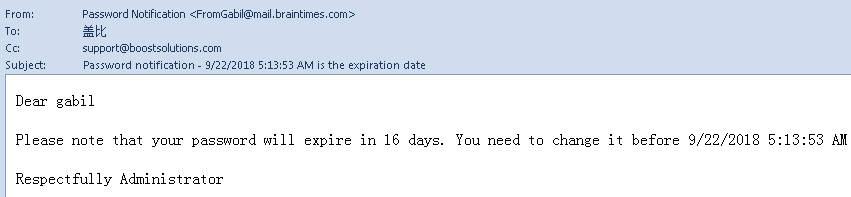
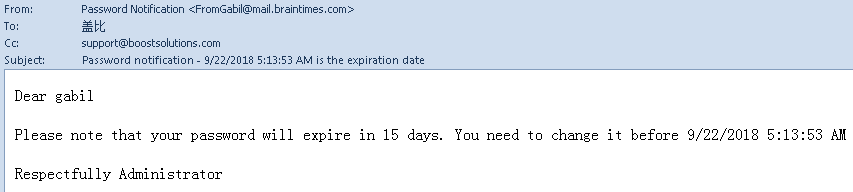
When Gabil has less than 16 days left for the password to expire, he received more notification emails as following.