- BoostSolutions
-
Products
-
- Microsoft Teams
- HumanLike Alert Reminder
- View All Apps
- Pricing
- Support
- Company
In SharePoint, users can download a copy of the document to their local computer. But when there is more than one document needs to be downloaded, you will have to do it one by one. Also, in SharePoint there is no option for downloading documents into a zip file. With BoostSolutions’ Bulk Zip&Unzip that is possible.
This article will describe how to download multiple documents as a zip file within SharePoint.
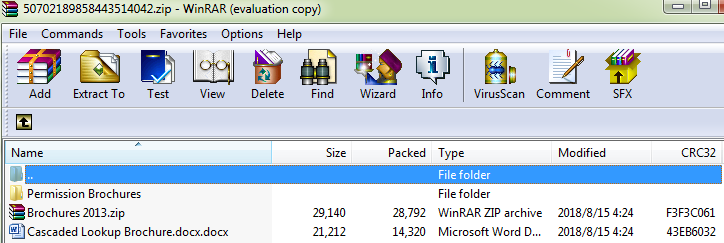
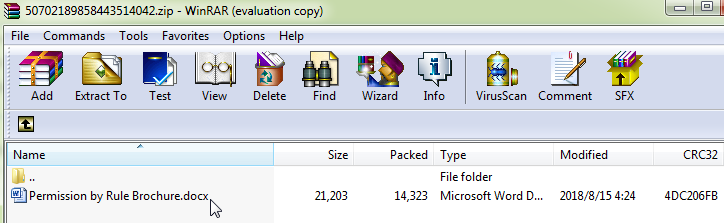
The documents are downloaded to a zip file
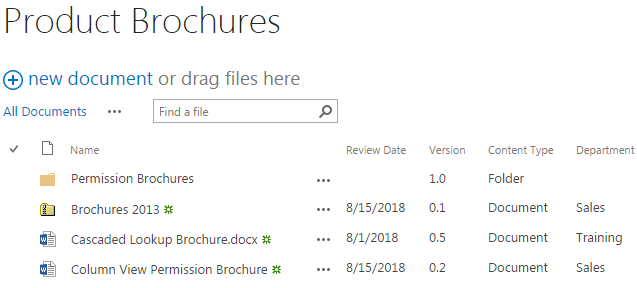
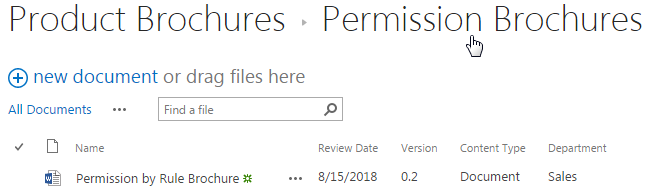
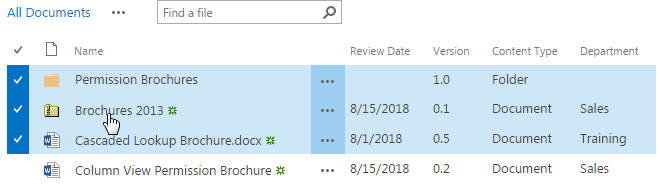
Create a library named as Product Brochures from the Document Library template on your SharePoint site with several documents and columns as following. You can create the document library based on your needs. Here we stored two WORD documents, a folder and a zipped file in the document library.
Download the trial version of Bulk Zip&Unzip, and install it to your SharePoint server.
Navigate to the Product Brochures library prepared above.
Select the documents which you want to download as a zip file. Here we selected a single WORD document (the Cascaded Lookup Brochures), the folder (Permission Brochures) and the zip file (Brochures 2013).
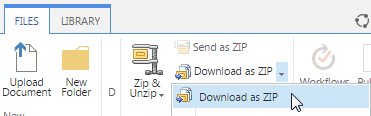
Go to FILES tab, in the Zip & Unzip group, click Download as ZIP.
Then, the selected documents will be downloaded as a zip file and saved to the Download folder on your local computer. The name for the downloaded zip file will be generated randomly.
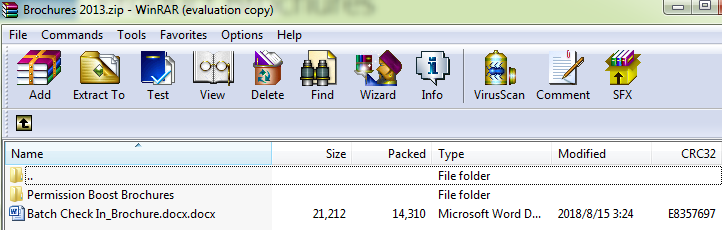
Open the zip file, you will find that the selected documents have been compressed into the zip file, and the structure of the documents is just the same as that in the document library, the structure has been maintained successfully during the compress process.