- BoostSolutions
-
Products
-
- Microsoft Teams
- HumanLike Alert Reminder
- View All Apps
- Pricing
- Support
- Company
If a user has different permissions on sites, subsite, lists, even on items within a SharePoint site collection, is there any easy and quick way to check this user’s permissions for all these contents?
BoostSolutions’ Permission Manager enables you to search a specific user’s permissions at site, list, folder or item levels. You can also export search results as an excel file for reporting and managing user permissions directly based on search results.
In this article, we will demonstrate how to check specific user’s permission for all sites, lists and items.
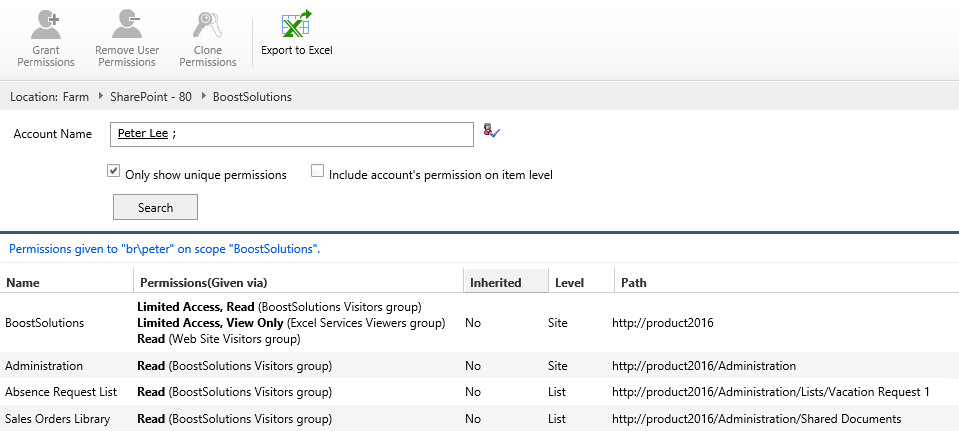
Check user Peter Lee’s permissions on all sites and lists
Download the trial version of Permission Manager and install it to your SharePoint server.
Open the Permission Manager platform in a browser.
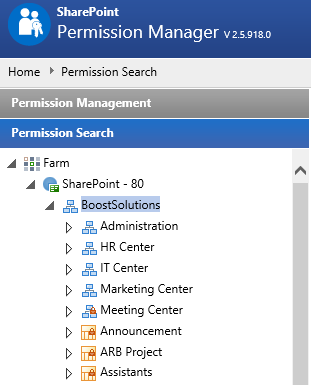
Navigate to the Permission Search, click site collection – BoostSolutions.
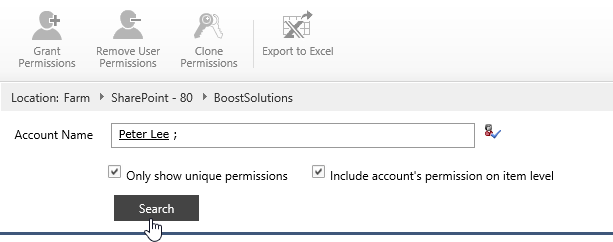
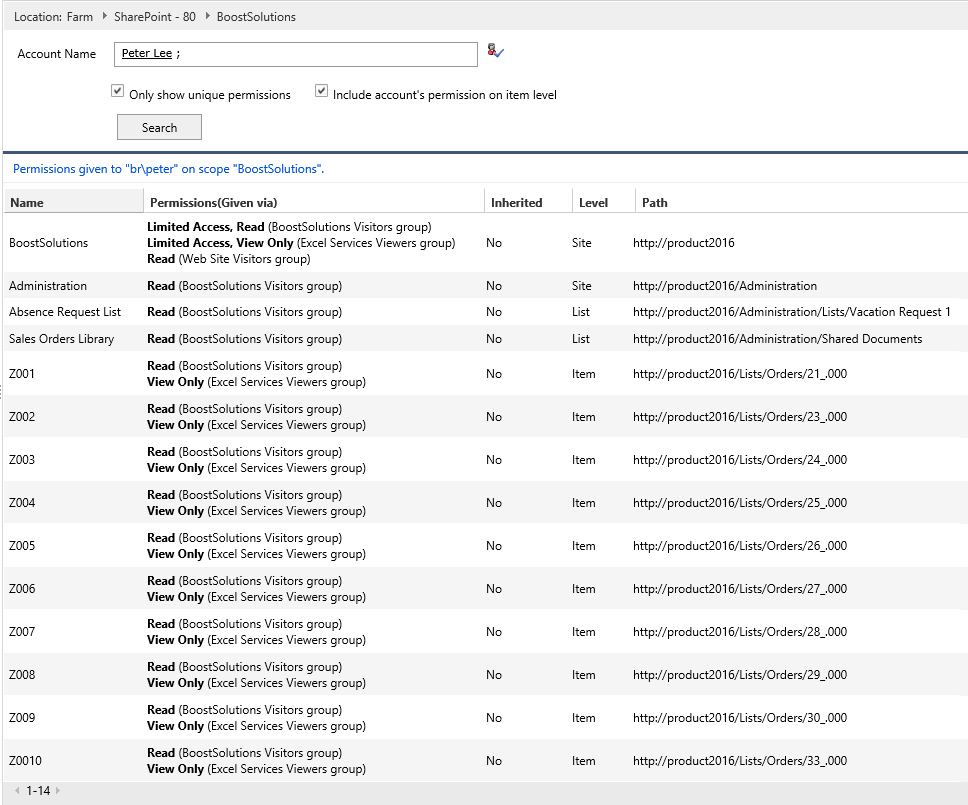
On the right part, in Account Name section, type a user Peter Lee and click Search button.
Only show unique permissions: Will only search the account’s permission on objects which permissions are broken.
Include account’s permission on item level: Specify if the item will be shown in the search results.
Wait for a few seconds, and the search results are listed as following.
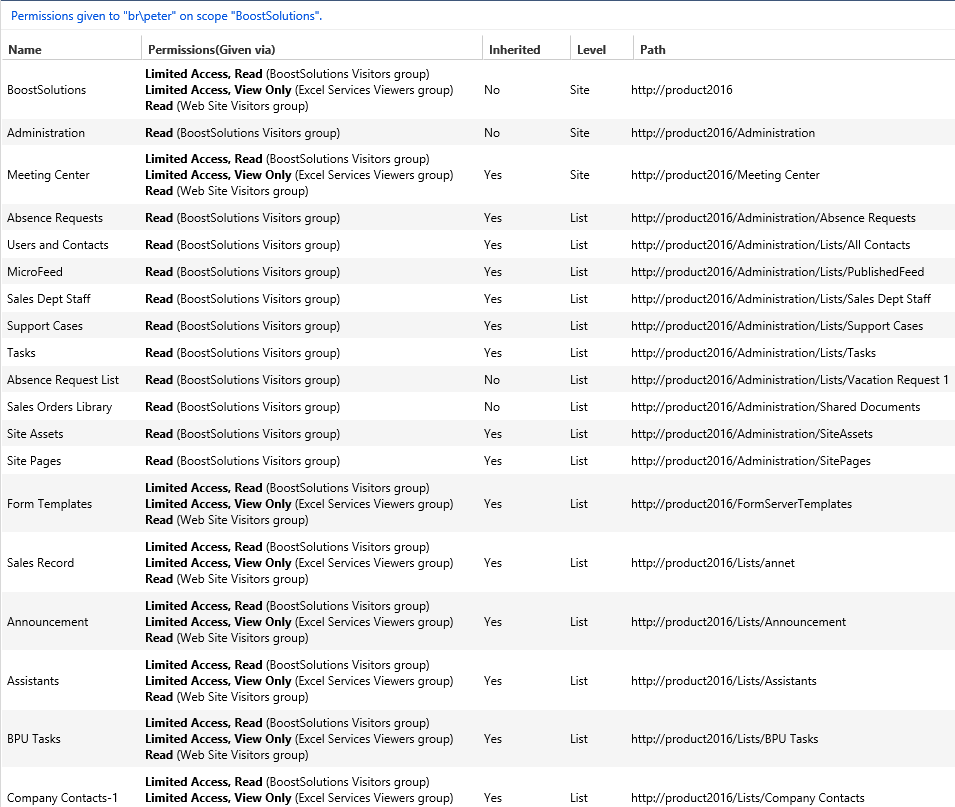
If the Only show unique permissions option is not selected, the result will list the user’s permissions on all contents, including the contents which permission are inherited and unique.
Click Export to Excel.
Then a window will pop up at the bottom of the explorer as following, asking whether you want to open or save the profile selected.

Click Save to save the Excel file to your local computer.
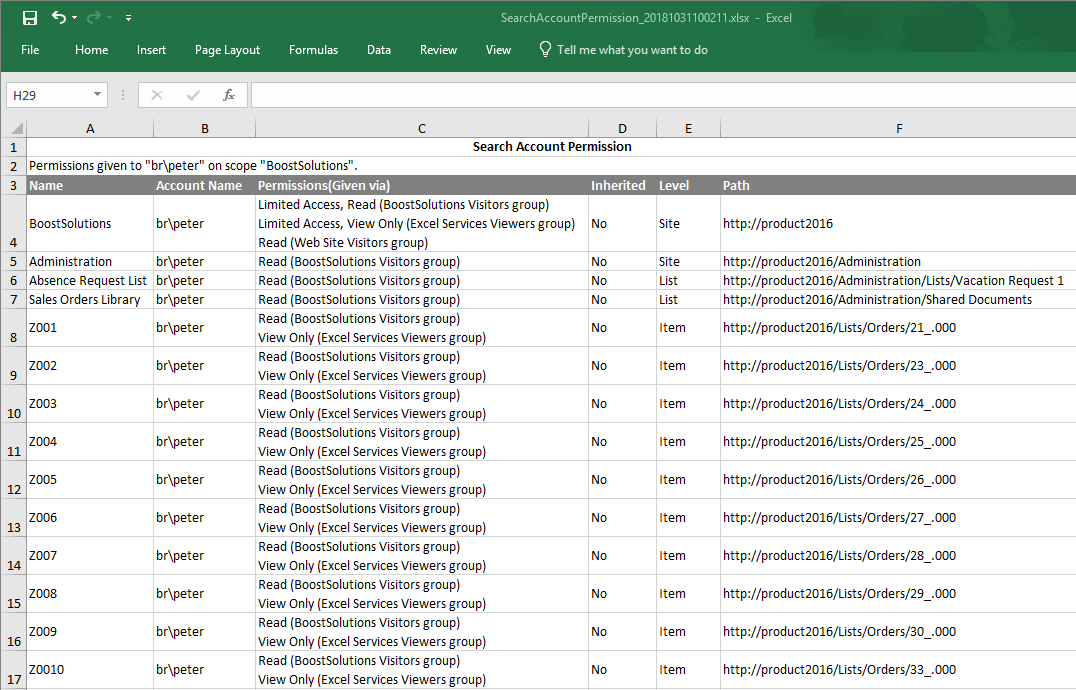
Then open the saved Excel file, you will find that Peter’s permissions are listed as following.