
- BoostSolutions
-
Products
-
- Microsoft Teams
- HumanLike Alert Reminder
- View All Apps
- Pricing
- Support
- Company
BoostSolutions’ Password Change & Expiration allows users to change their own passwords from SharePoint without administrator intervention. This web part also has sending expiration notification emails to warn users before their passwords expire, sending confirmation emails after users have successfully changed their passwords and other features. In this article we will demonstrate how to change the password on a SharePoint site. There are two ways to do it.
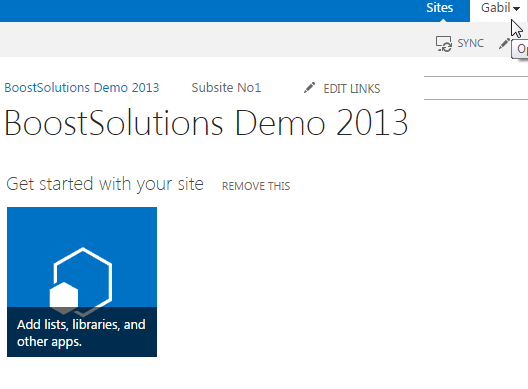
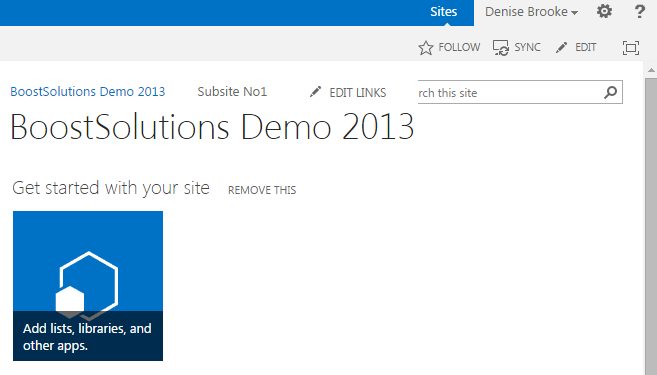
Even whenGabilandDeniseused different ways to change the password, they both were successful in doing so.
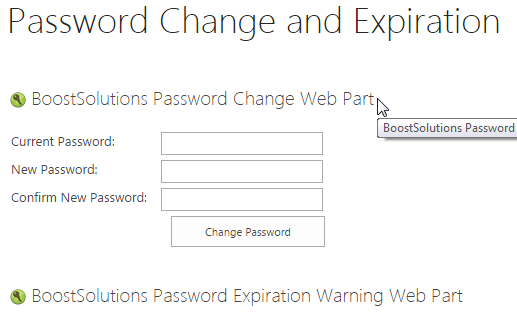
The web part is added to the SharePoint site. For this article we added it to the site page called Password Change and Expiration. You can check our other article to get more information on how to add the web part.
Download the trial version of Password Change & Expiration and install it to your SharePoint server.
Log in as one of the users. In our case we logged in as Gabil. After logging in navigate to Site page prepared above.
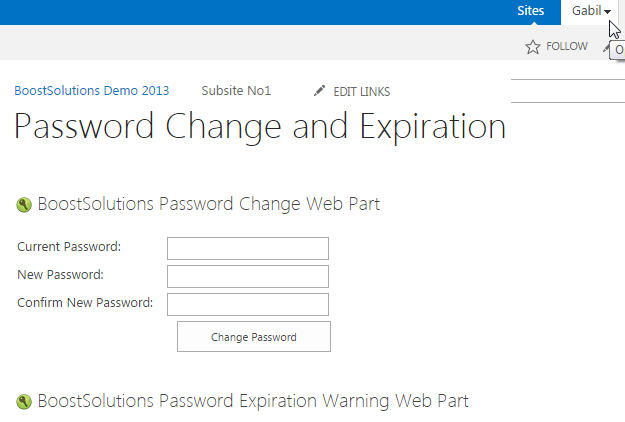
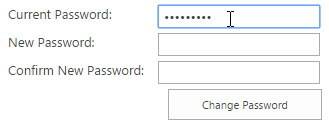
Fill in the current password in the Current Password box.
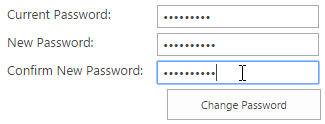
Fill in the new password that you want to change to in New Password and Confirm New Password boxes.
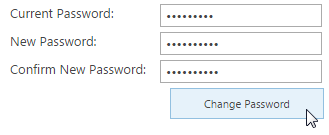
Click Change Password.
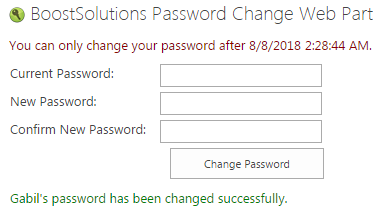
You will see the following notification appear after clicking on Change Password button.
Now, let’s check if it is really successful. Log in to the site as Gabil after typing in the new password.
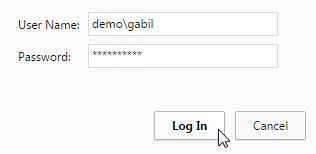
You will successfully log in to the site.
Now let’s try another way to change the password of the user. This time log in as Denise Brooke. Click on the name in the upper right corner of the site to open the personal menu. Then click on Change Password.
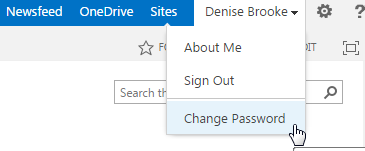
You will be redirected to the Password Change page.
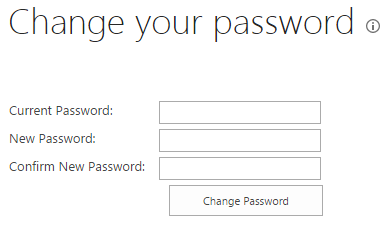
Repeat the steps 3, 4 and 5.
You will see the following notification appear after clicking on Change Password button.
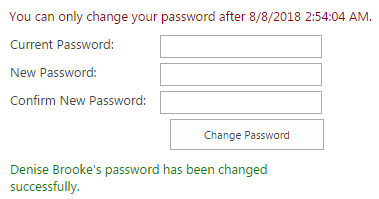
Now, let’s check if it is really successful. Log in to the site as Denise Brooke after typing in the new password.


