- BoostSolutions
-
Products
-
- Microsoft Teams
- HumanLike Alert Reminder
- View All Apps
- Pricing
- Support
- Company
A site column is a reusable column which can be assigned to multiple lists or libraries in SharePoint. Also, you can create a Cascaded Lookup column as a site column.
This article will demonstrate how to do it.

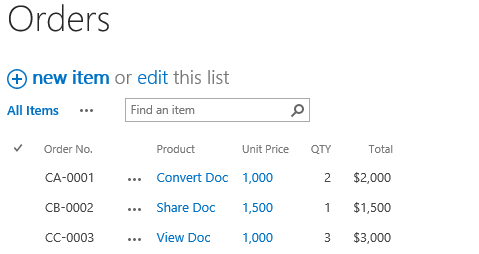
The Customer is a site column with the column type of Cascaded Lookup
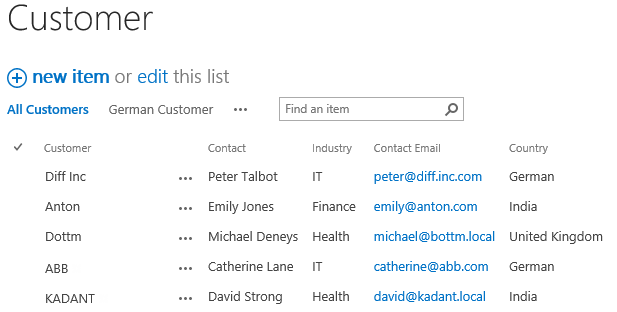
Then, create the other list named as Customer from the custom list template with following columns and items on a SharePoint site.
Download the trial version of Cascaded Lookup, and install it to your SharePoint server.
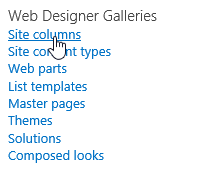
Go to the Site Settings page, under Web Designer Galleries, click Site columns.
On the Site Columns page, click Create.
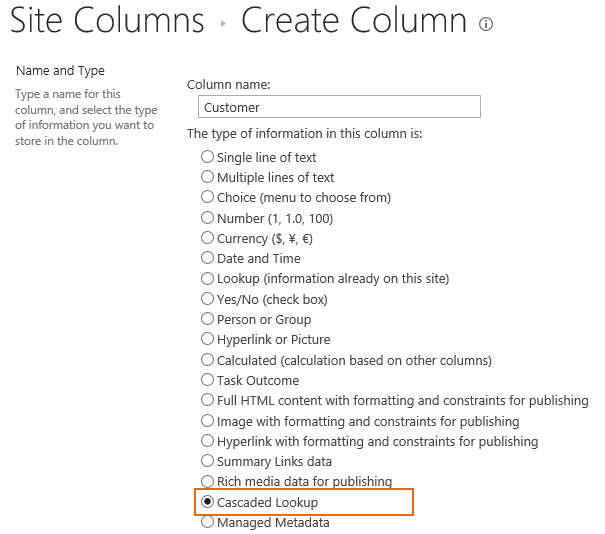
In the Name and Type section, enter a name in the Column Name field to give it a meaningful name such as Customer, then select Cascaded Lookup as the type of information in this column.
In the Group section, select Custom Columns from the Existing group dropdown list.

In the Additional Column Settings section, keep all settings as default.
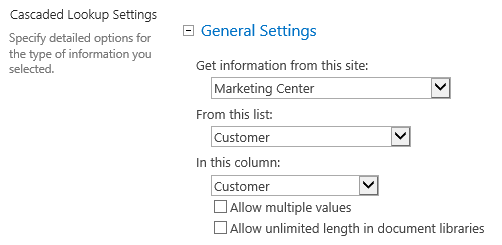
In the General Settings section, configure settings as following.
In the Get information from this site box, select Marketing Center, because in our example the Customer list is located in a SharePoint site named as Marketing Center. You need to select the corresponding SharePoint site in which your Customer list is located.
In the From this list box, select Customer.
In the In this column box, select Customer.
In the Filter section, select the checkbox of Allow users to filter items using columns option. And select the Country and Industry columns as following.

Keep other settings as default and click OK.
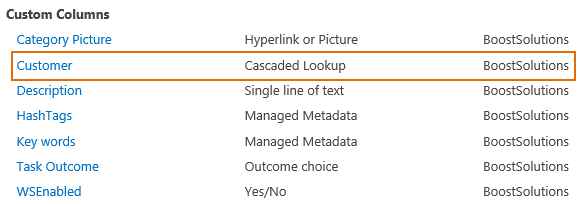
And then, you will find Customer in the Custom Columns group.
In the Orders list, go to List Settings page, and click Add from existing site columns in Columns section.

In the Add Columns from Site Columns page, select Custom Columns group, and select Customer from the Available site columns box to add it to the Columns to add box as following.
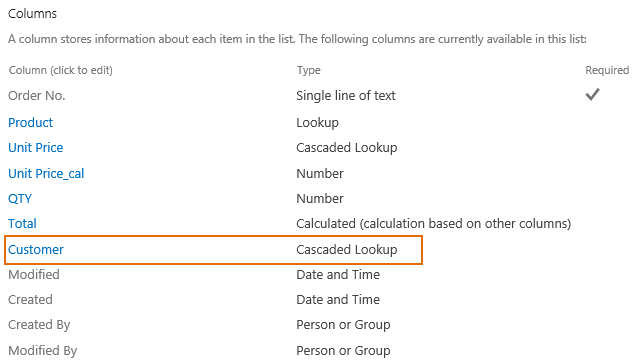
Keep other settings as default and click OK. And then you will find the Customer column has been added in the Orders list as following.
In the Orders list, select order CA-0001 and modify it.
In Customer column, you will find two filters: Filter by Country and Filter by Industry.
In Filter by Country drop-down list, select German; and in Filter by Industry drop-down list, select IT. And then the Customer ABB (which matches the filter criteria) will be shown as below.
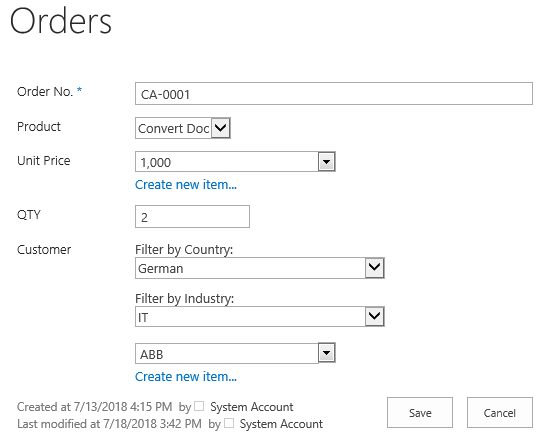
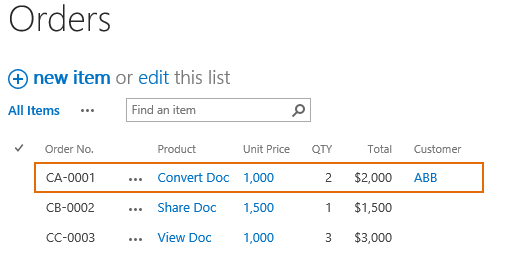
Click Save button, and then the customer value is saved in the CA-0001 as following.