
- BoostSolutions
-
Products
-
- Microsoft Teams
- HumanLike Alert Reminder
- View All Apps
- Pricing
- Support
- Company
In SharePoint libraries or lists there are columns need to be filled in mandatorily sometimes. We cannot leave such columns as empty and will have to fill them in with any data when edit properties for documents/lists with this kind of columns. But with BoostSolutions’ Bulk Properties Editor, you can just skip those columns without filling anything.
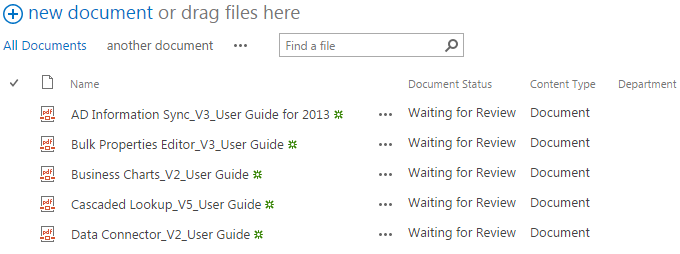
The Department column which needs to be filled in mandatorily is empty after documents’ properties editing
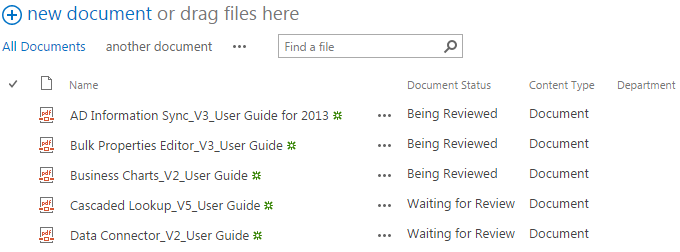
Create a Library in your SharePoint site with several documents and columns as shown below. The Department column in the list is a mandatory column which must be filled in.
Download the trial version of Bulk Properties Editor, and install it to your SharePoint server.
Navigate to the Library prepared above.
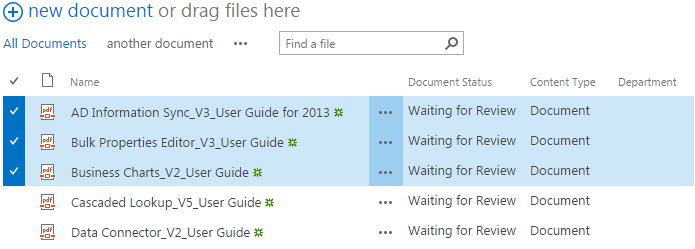
Choose documents for which you are going to edit the properties.
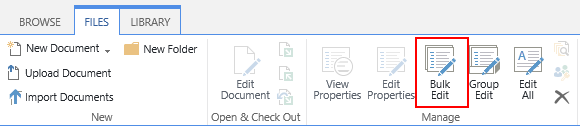
Go to the Files tab in the ribbon, and then click Bulk Edit.
The following dialog box will appear after clicking the Bulk Edit button in which you can edit properties for the selected documents all at once.
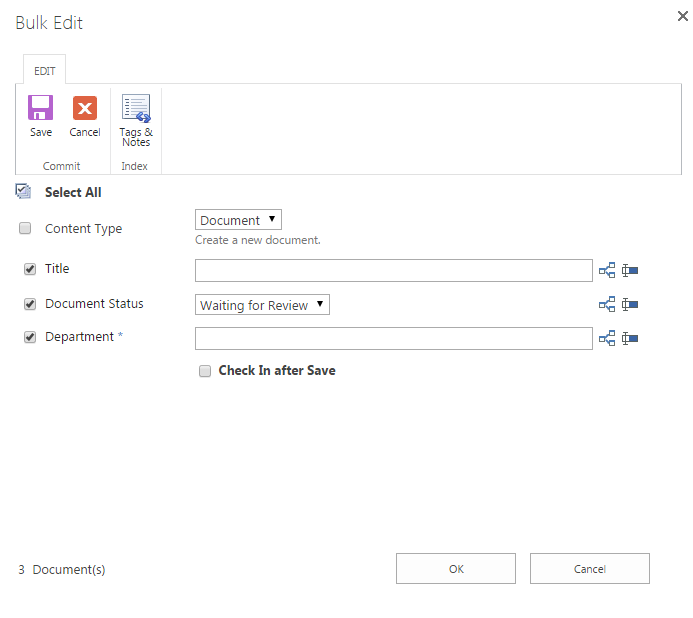
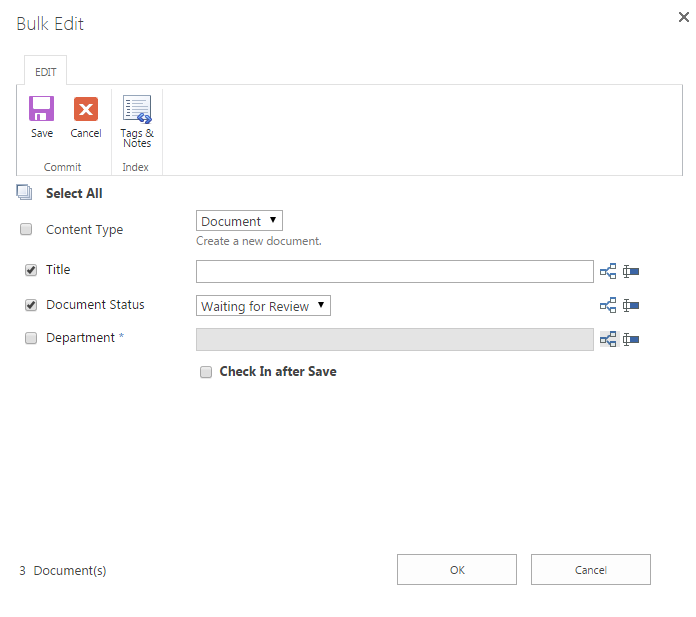
Now, let’s uncheck the checkbox next to the column which requires having information mandatorily (the one with the blue asterisk, here the Department column), then let’s edit the Content Type column with the value Document, and edit the Document Status column with the value Waiting for Review. Then click OK to save the editing.
After a short loading process, you will see the following window appears, showing that it’s finished, we have successfully bulk edited properties for selected documents, and skipped the mandatory Department column.
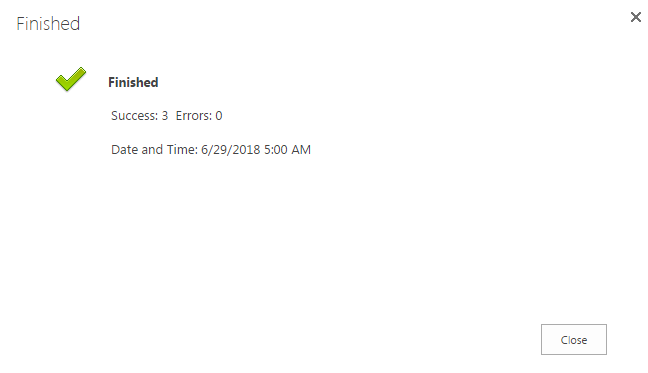
Click Close to exit the editing process, below is what looks like in the list view.


