- BoostSolutions
-
Products
-
- Microsoft Teams
- HumanLike Alert Reminder
- View All Apps
- Pricing
- Support
- Company
There are several ways to edit metadata/properties for document/list in SharePoint. You can edit properties for item/document in the edit item form one by one, or you can use Quick Edit feature to edit properties in a datasheet form. When there is more than one item need to be edited, those methods are very time consuming or have some limitations. With Bulk Properties Editor you can easily edit properties for multiple items/documents all at once. In this article, we will show the three ways to bulk edit multiple items’ metadata/properties, you can choose any one that suits you after you understand the logic behind them.
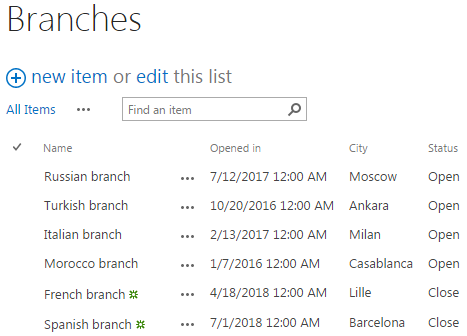
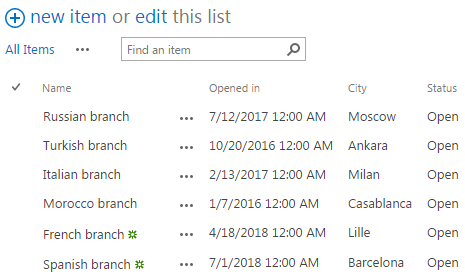
The metadata of the “Status” for the last 2 items have been bulk edited from Close to Open all at once.
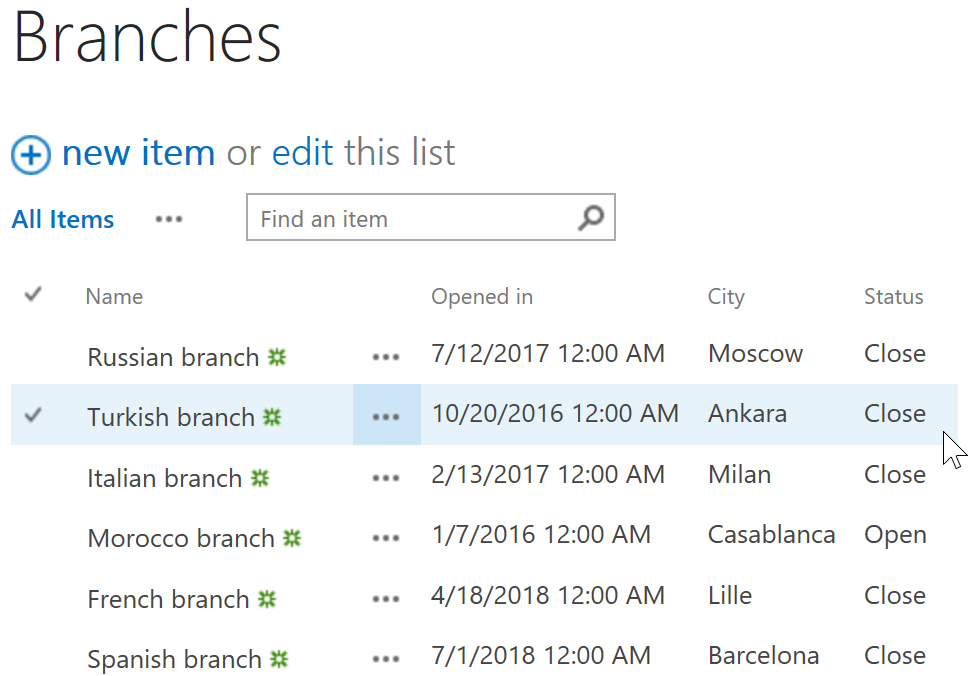
Create a list in your SharePoint site with several items and columns. Specify a unique name for it whatever you like. Here we created a Branches list in which we stored the name of the branch, the time the branch opened in, the city the branch opened in, and the status of the branch.
Download the trial version of Bulk Properties Editor, and install it to your SharePoint server.
Navigate to the Branches list prepared above.
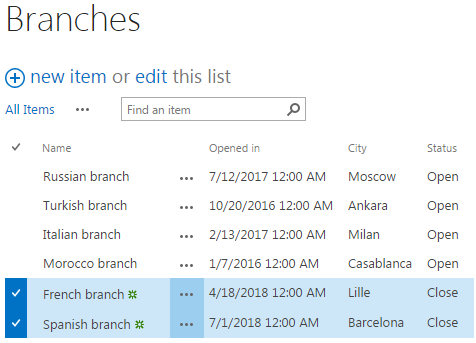
Select the items for which you want to edit properties, here we selected the last two items.
Click List, then click Bulk Edit in Manage group.
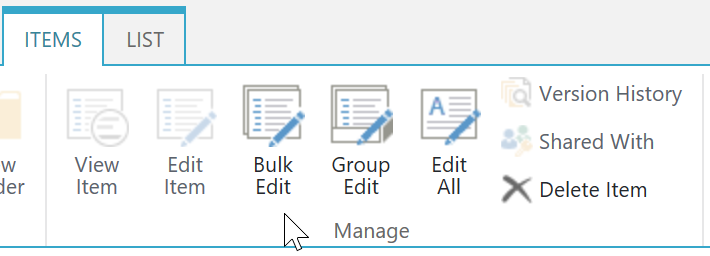
Then, you will be redirected to Bulk Edit window in which you can bulk edit properties for items selected all at once.
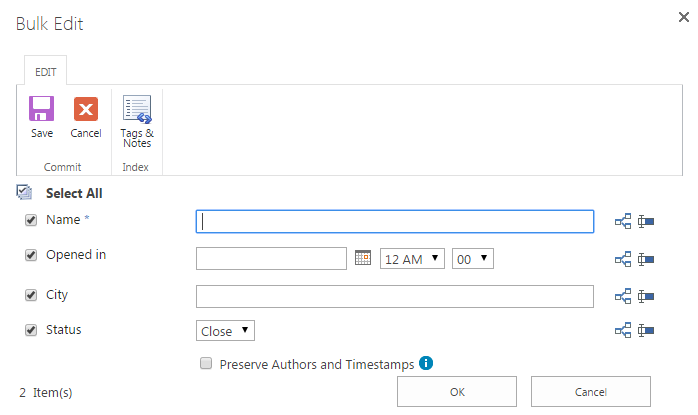
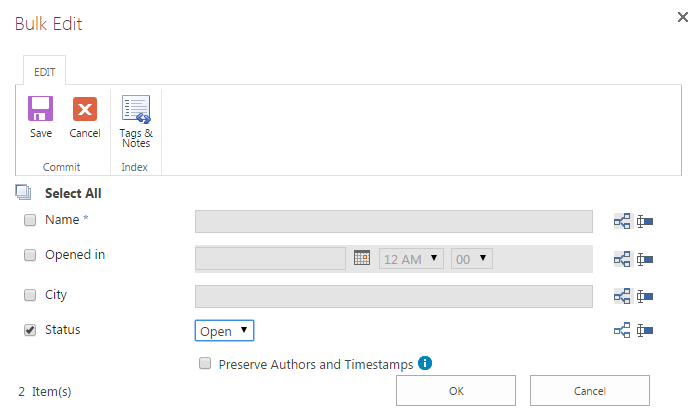
Here let’s leave other columns as they are and change the Status property from Close to Open (we use the Status column to demonstrate how Bulk Edit works, you can try to bulk edit other column or all columns in the list) and click OK to save the change.
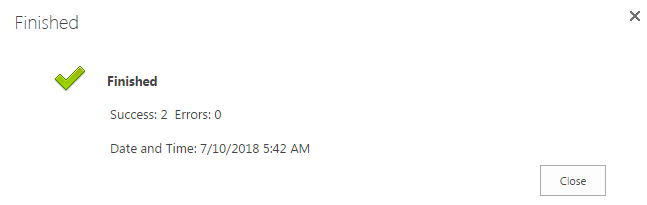
After a short loading process, click Close when finished.
Then, you will see the Status of the last 2 items selected have been changed accordingly.
Download the trial version of Bulk Properties Editor, and install it to your SharePoint server.
Navigate to the Branches list prepared above.
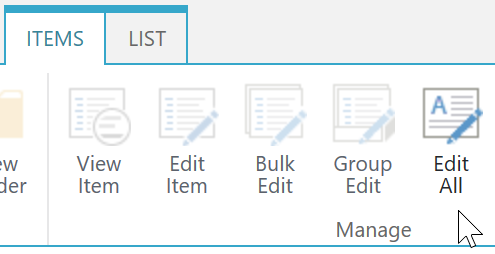
Select the items for which you want to edit properties, here we don’t need to select anything, we just click ITEMS, then click Edit All in Manage group.
Then, you will be redirected to Bulk Edit window for Edit All in which you can bulk edit properties for all items all at once. Notice that this window looks very similar with the Bulk Edit window for Bulk Edit but look at the bottom left corner of the wondow, you will find of that it shows 6 item(s) which means that the changes we make here will be applied to all items in the list.
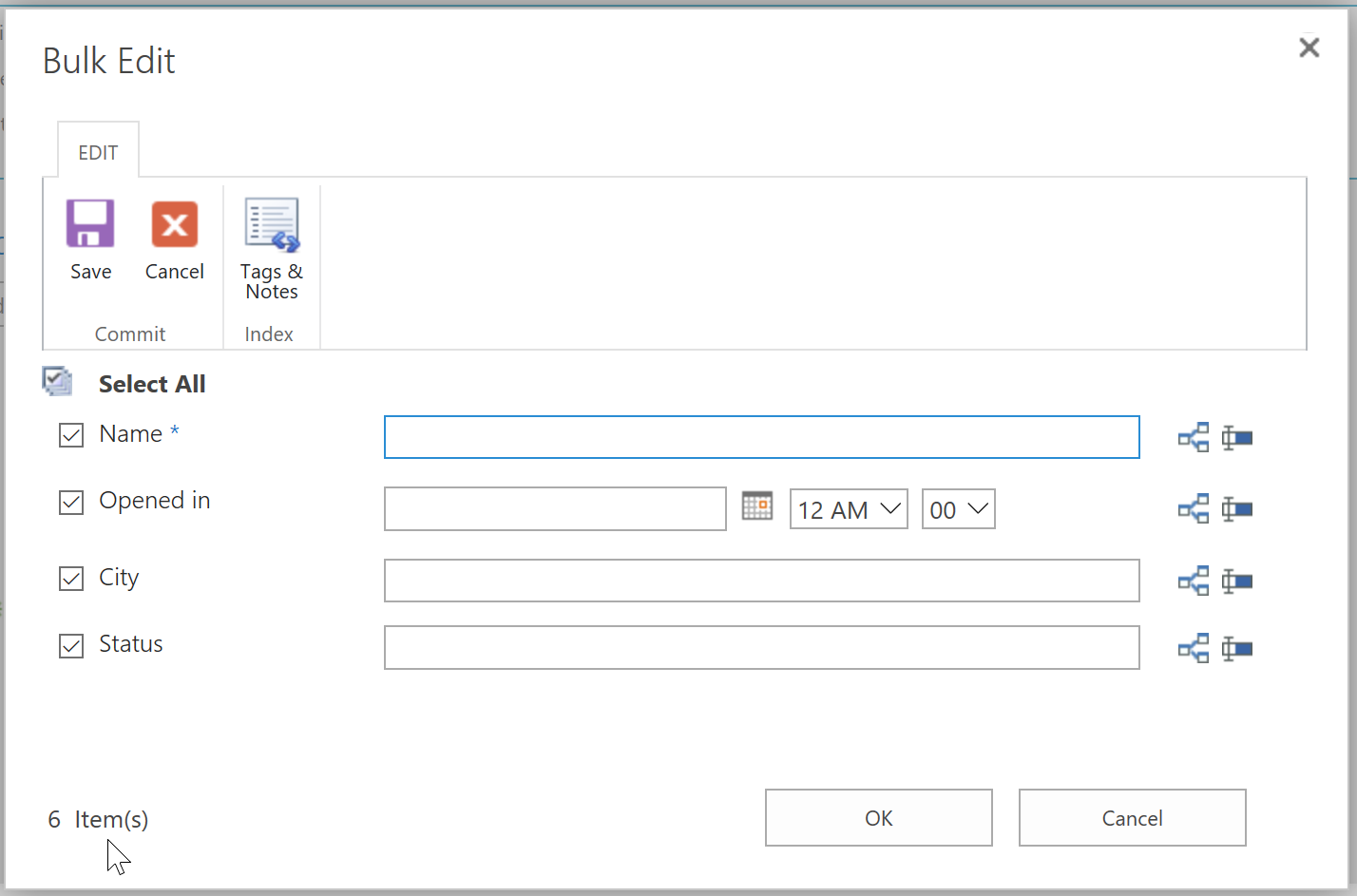
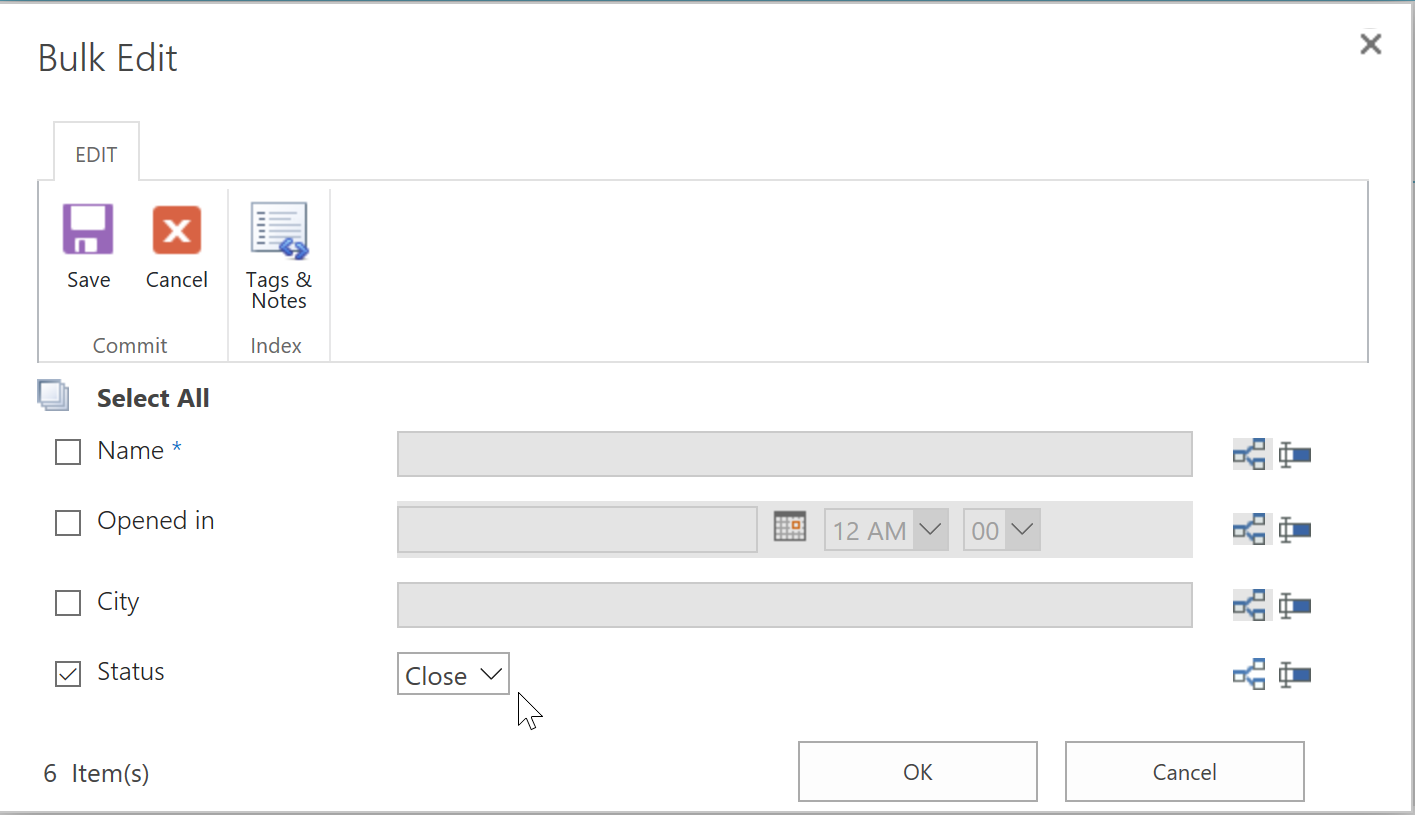
Here let’s leave other columns as they are and change the Status property to Close (we use the Status column to demonstrate how Edit All works, you can try to bulk edit other column or all columns in the list) and click OK to save the change.
After a short loading process, click Close when finished.
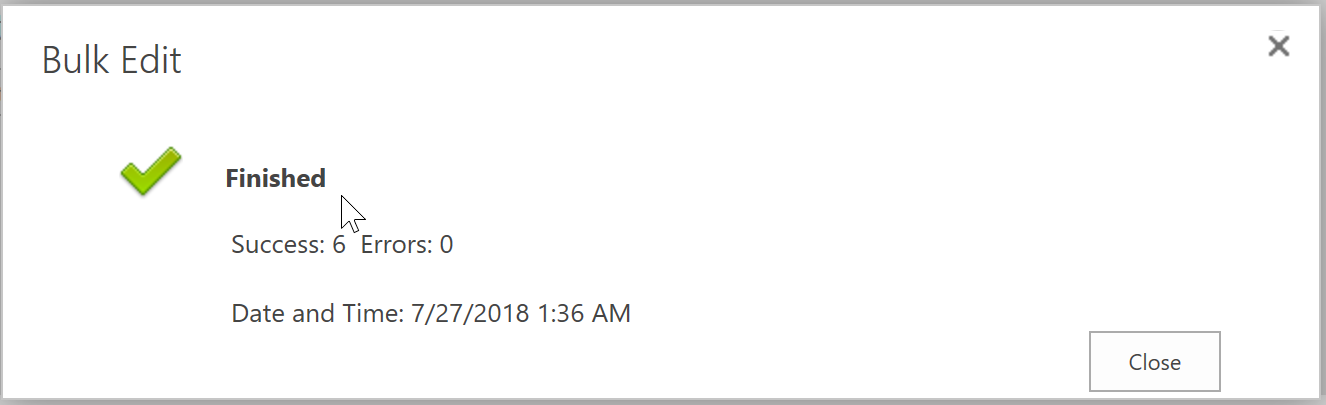
Then, you will see the Status of all items selected have been changed accordingly.
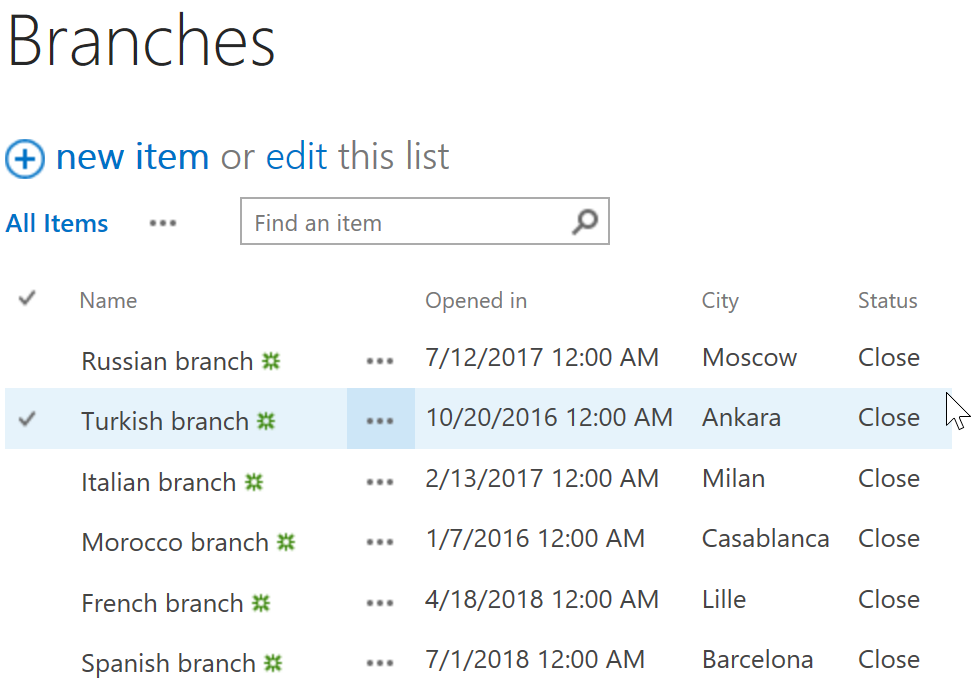
Download the trial version of Bulk Properties Editor, and install it to your SharePoint server.
Navigate to the Branches list prepared above.
Select the items for which you want to edit properties, here select first three items.
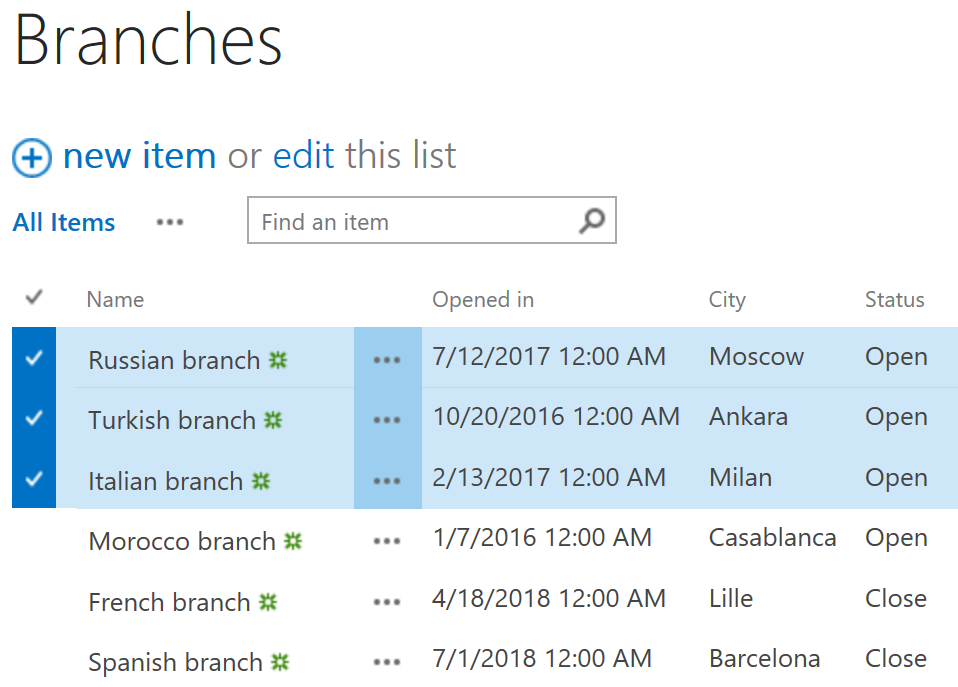
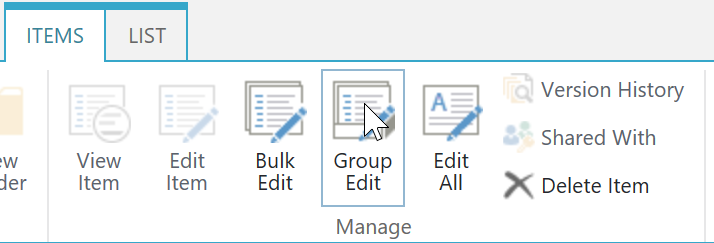
Click ITEMS, then click Edit All in Manage group.
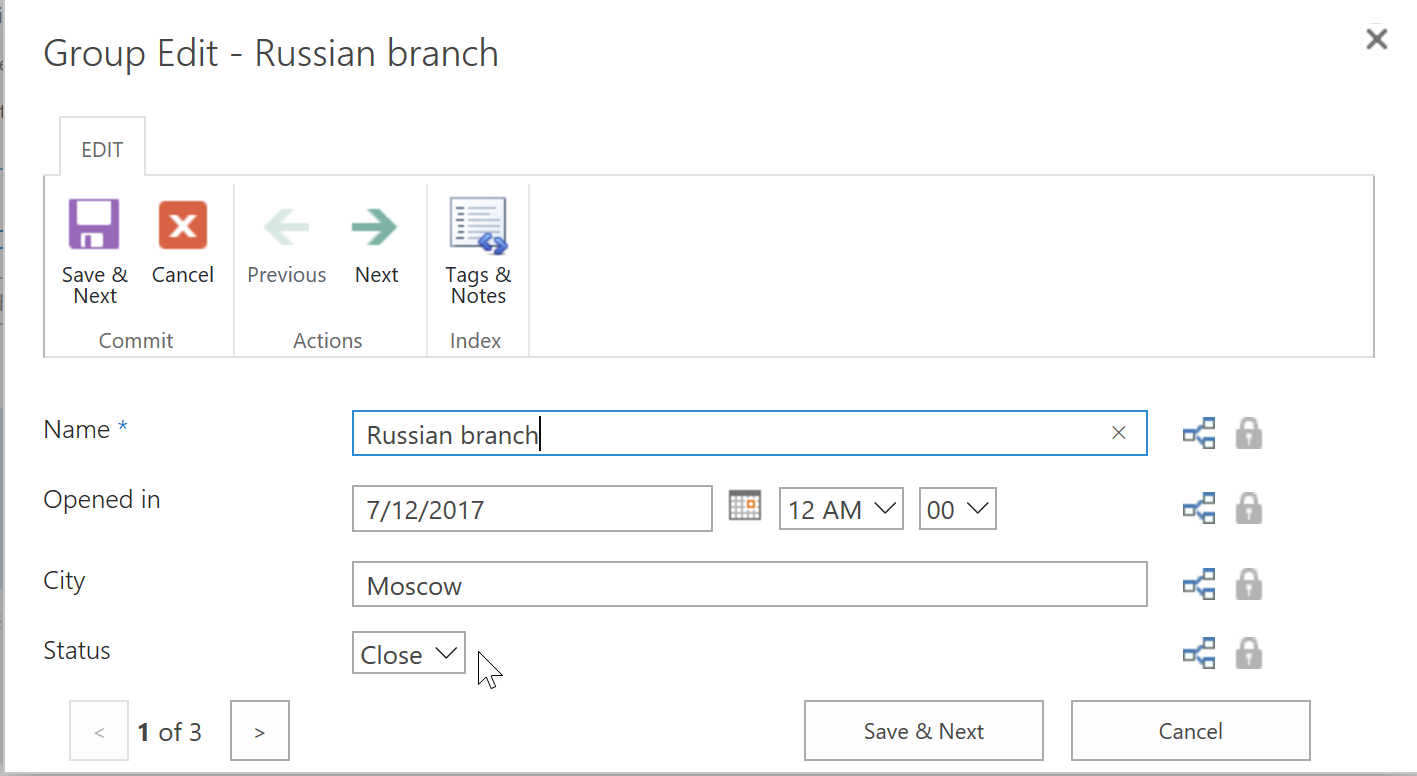
Then, you will be redirected to Group Edit window in which you can bulk edit properties for all selected items one by one. And you can navigate between the selected items by clicking the Previous and Next buttons on the ribbon.
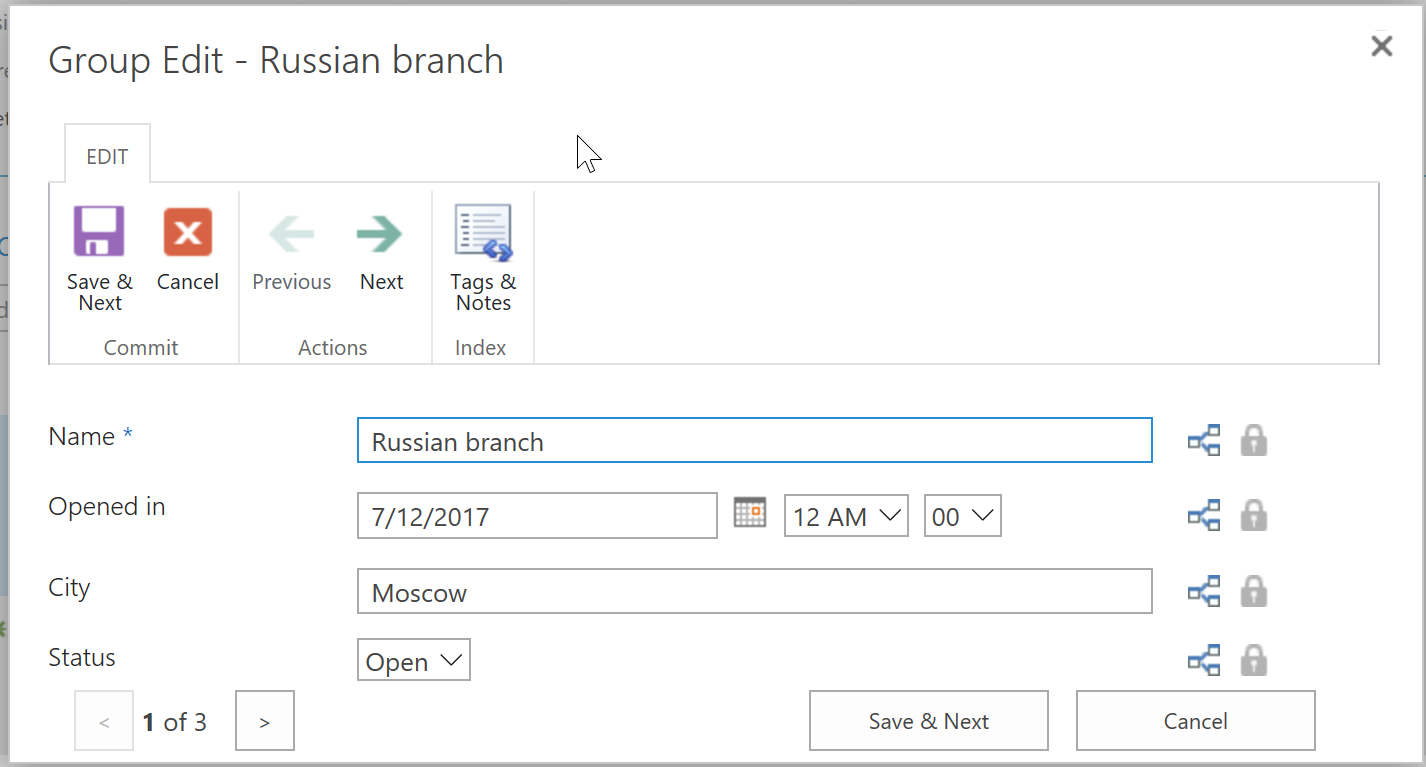
Here let’s leave other columns as they are and change the Status property of selected items (we use the Status column to demonstrate how Group Edit works, you can try to bulk edit other column or all columns in the list). Let’s change the value for Status of item Russian branch from Open to Close, then click Save & Next.
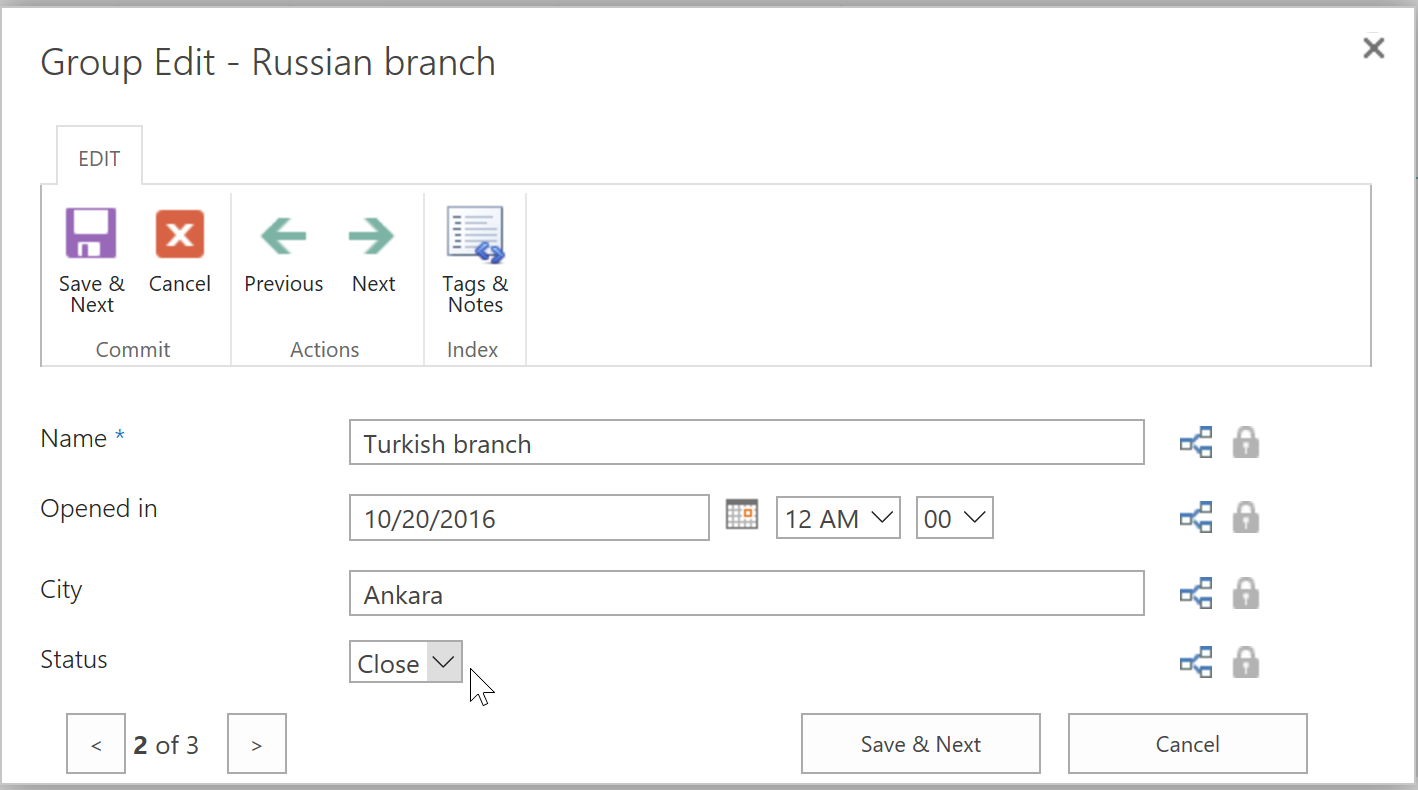
Now, let’s change the value for Status of item Turkish branch from Open to Close too, then click Save & Next.
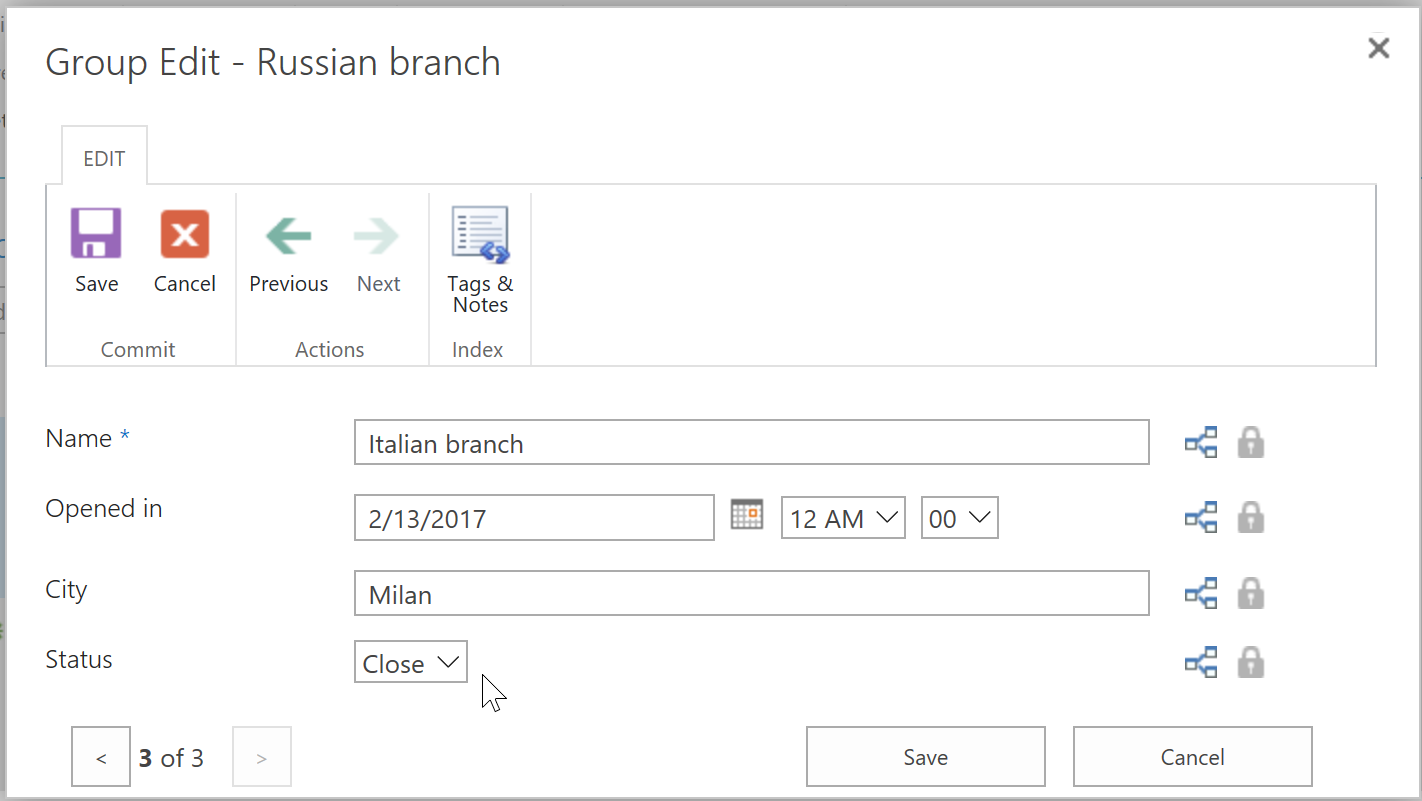
Then, let’s change the value for Status of item Italian branch from Open to Close as we did for the other two columns above, then click Save.
After a short loading process, you will find out that the values of the Status column for the three selected items have been changed accordingly.