- BoostSolutions
-
Products
-
- Microsoft Teams
- HumanLike Alert Reminder
- View All Apps
- Pricing
- Support
- Company
Editing properties for items and documents in SharePoint is a common task for users. Our Bulk Properties Editor has bunch of features provided for making properties edit process easily. One of them is Auto Complete which stores values for properties you input earlier, and list them out for selection when you try to edit the property. It saves you from input value for field every time, it’s very convenient especially when value for the field changes between several fixed ones.
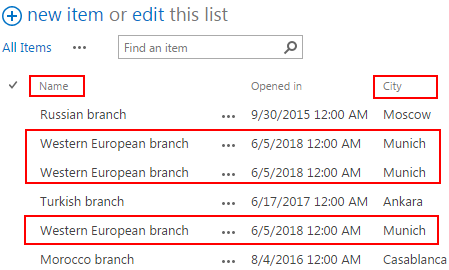
The Name and City properties of the 3 itmes in frame are bulk edited all at once, and the value for the City column is chosen from the options provided by Auto Complete
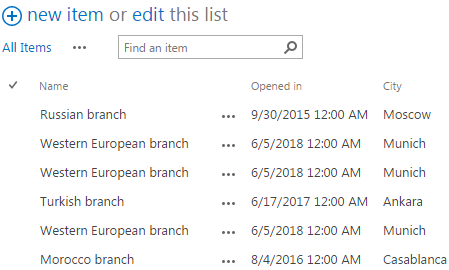
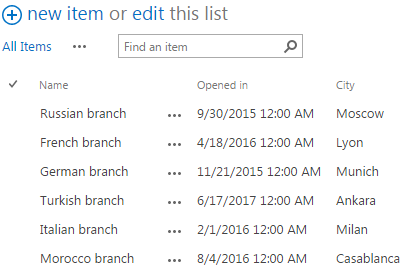
Create a list in your SharePoint site with several items and columns. Specify a unique name for it whatever you like. Here we created a Branches list in which we stored the name of the branch, the time the branch opened in, and the city the branch opened in.
Download the trial version of Bulk Properties Editor, and install it to your SharePoint server.
Navigate to the Branches list prepared above.
Click LIST, then click List Settings in Settings group.
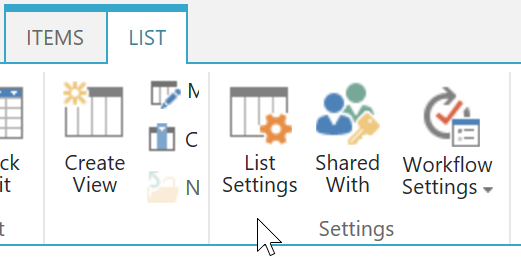
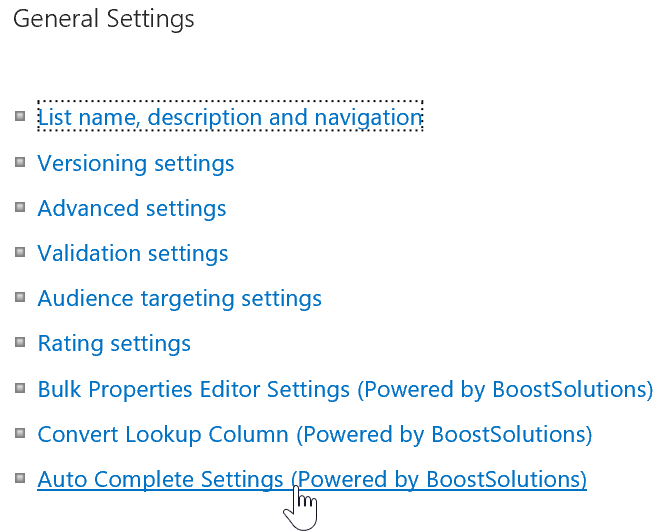
Then click Auto Complete Settings (Powered by BoostSolutions) under General Settings.(click List Settings, then click Auto Complete Settings (Powered by BoostSolutions) in case you created a Library in the previous step).
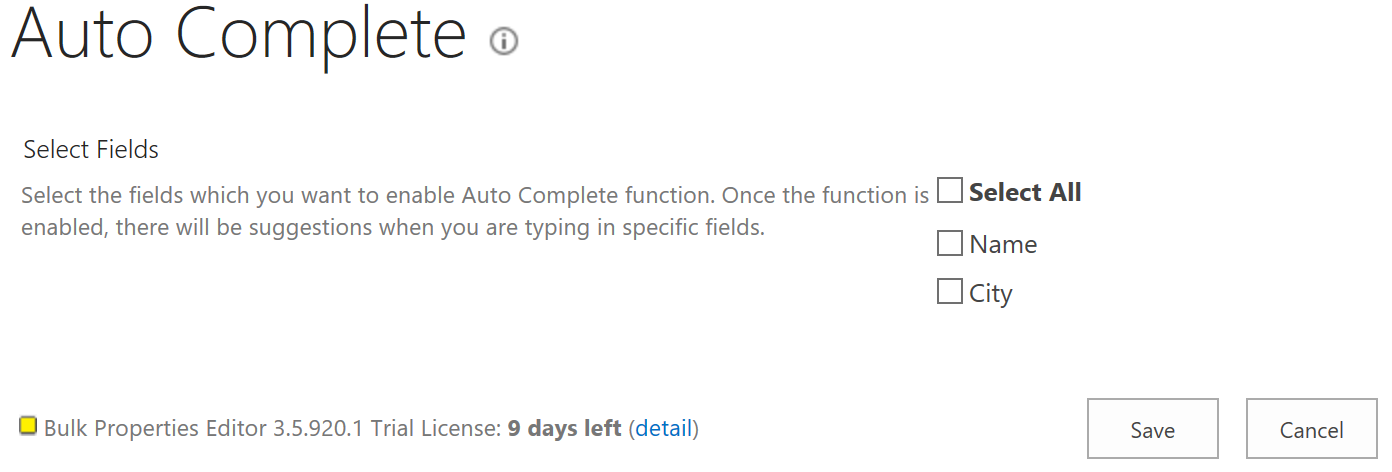
You will be redirected to Auto Complete Settings page in which you will be able to Select Fields which you want to enable Auto Complete function, once the function is enabled, there will be suggestions when you are typing in specific fields.
Here we select the column City to enable Auto Complete function for it.
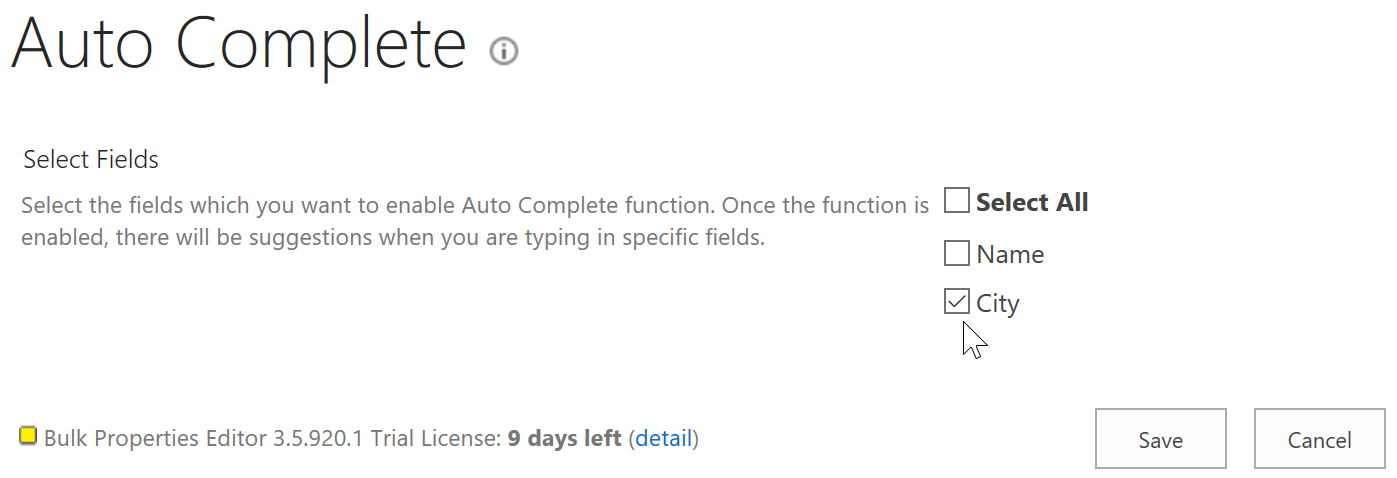
Click Save, then go back to the Branches list.
Select item(s) for which you want to edit properties, click ITEMS, then click Bulk Edit in Manage group. Here we selected the three items shown in the picture below.
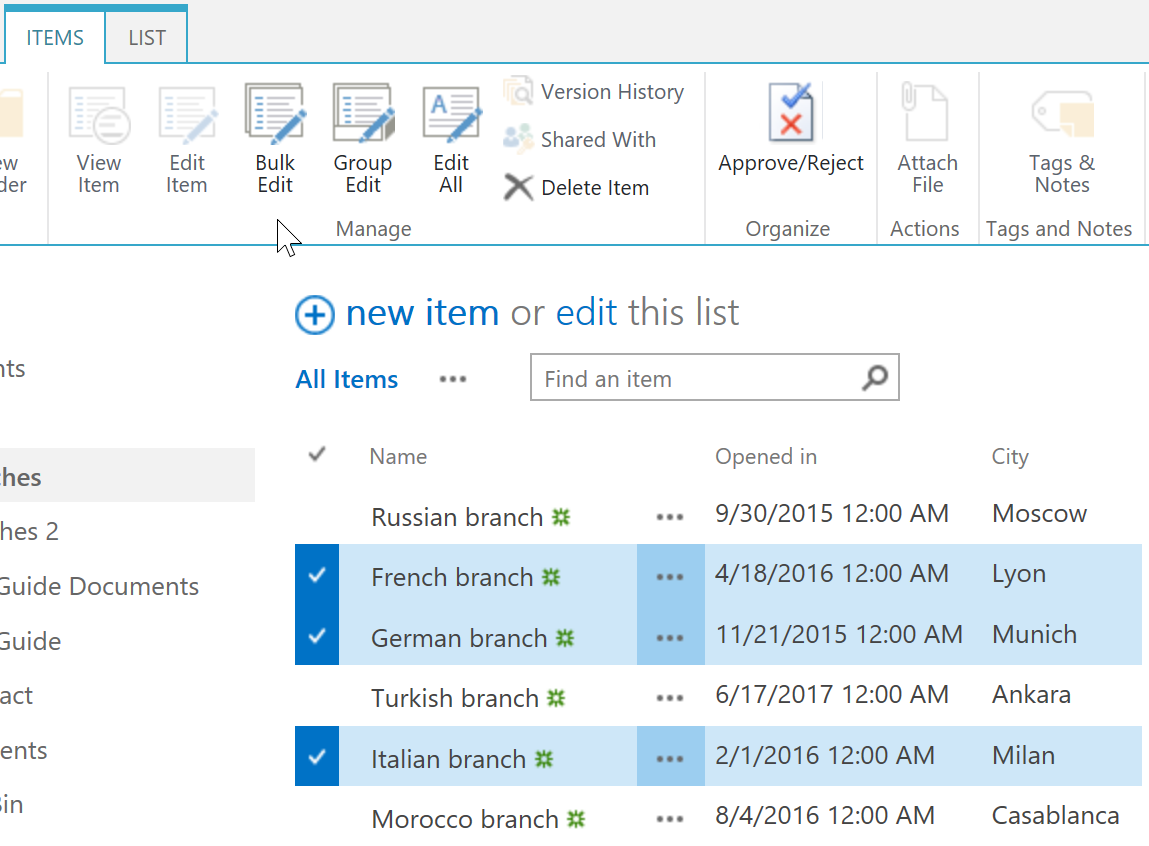
Then, you will be redirected to Bulk Edit page in which you can bulk edit properties for items selected all at once.
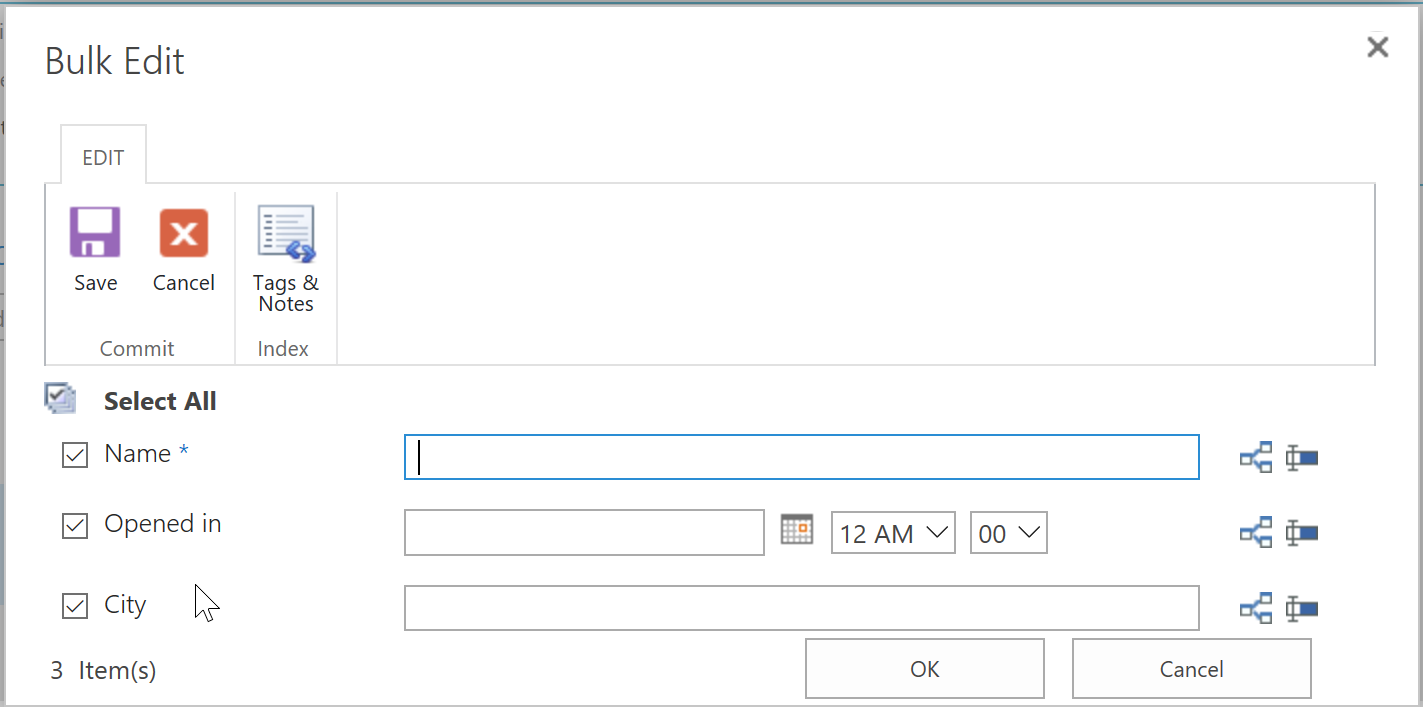
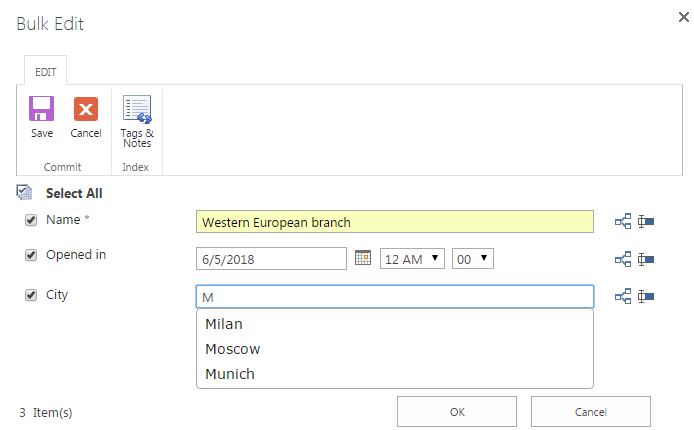
Let’s bulk edit the Name property to Western European branch, then let’s bulk edit the City field for selected items, notice that the values we input earlier for City column are listed below for selection, that’s how Auto Complete works, it stores the values we input earlier for the field, and list them out for selection when we edit the property. It’s very convenient if the value of the field changes in several fixed ones. We don’t need to type in the value for the field every time when we edit the property, we can just choose from the options provided by Auto Complete. Of course, you can type in other value besides the options provided.
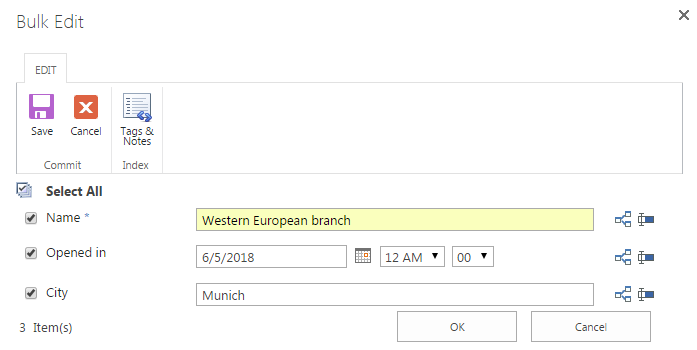
Here we choose Munich as the value for the City column and click OK. Then the values for the City column of all 3 selected items will be bulk edited to Munich.
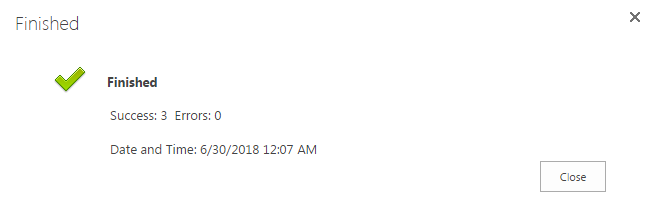
After a short loading process, click Close when finished.
Then, you will see the values for the Name column of the 3 selected items have been changed to Western European branch and the City column of the 3 selected items have been changed to Munich in the Branches list.