- BoostSolutions
-
Products
-
- Microsoft Teams
- HumanLike Alert Reminder
- View All Apps
- Pricing
- Support
- Company
If you have a SharePoint document library with multiple PDF files and want to convert them to Word documents for editing, BoostSolutions’ PDF Converter can help you to convert the files within the document library.
In this article, we will demonstrate how to convert a PDF file to a MS Word document.
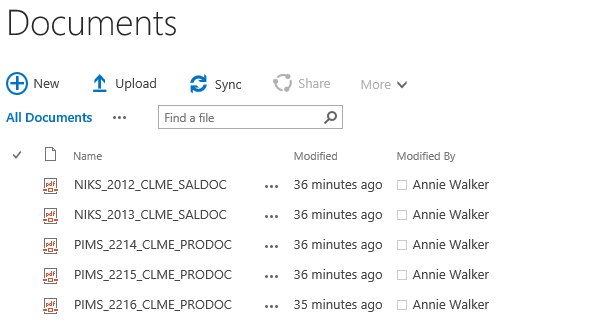
There is a document library which name is Documents, the library includes these documents as following.
Download the trial version of PDF Converter and install it to your SharePoint server.
Navigate to the document library Documents.
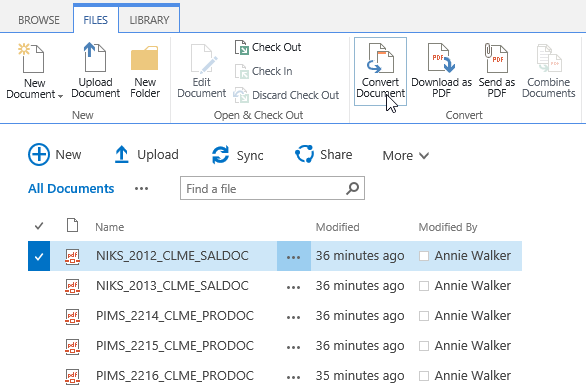
In the document library, select one document, under FILES tab, click Convert Document command in Convert group.
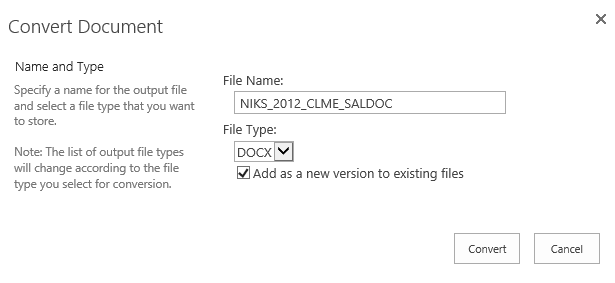
Then a Convert Document dialog appears, configure these options.
In the File Name section, specify a name for the document. Here we specify the name as NIKS_2012_CLME_SALDOC.
For File Type, specify the type as DOCX, or you can specify the type as DOC.
Click Convert button. Wait for a few seconds, a message indicates you that document has been converted to DOCX format.
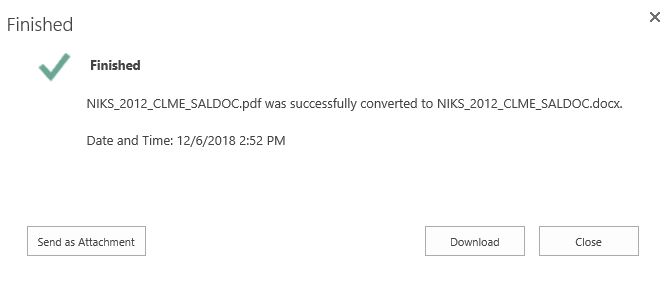
In this dialog, you can click Send as Attachment button to send the converted document as an email attachment.
Or, click Download button to save the converted document to your computer.
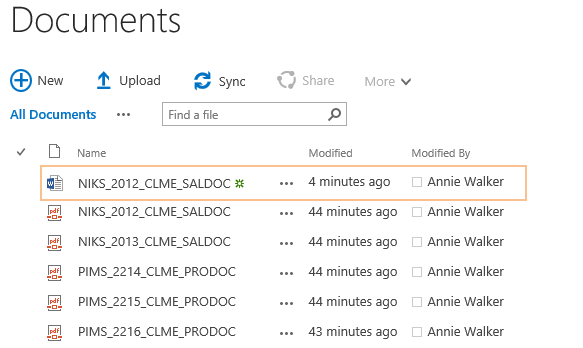
Click Close button to return to the Documents library, then you will find that a new Word file is added in the library as following.