Current Page: Home > All Products > Web Parts > Collaboration > List Collection
Ver. 3.3.508Compatible with SharePoint 2007, 2010, 2013
Or, download previous version
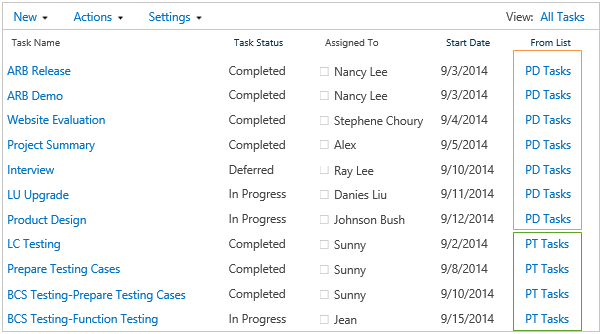
SharePoint List Collection is a Web Part which can collect lists from different sites to display in a single grid view. It can also create different views in the list collection web part as in the lists.
Check out the performance here.
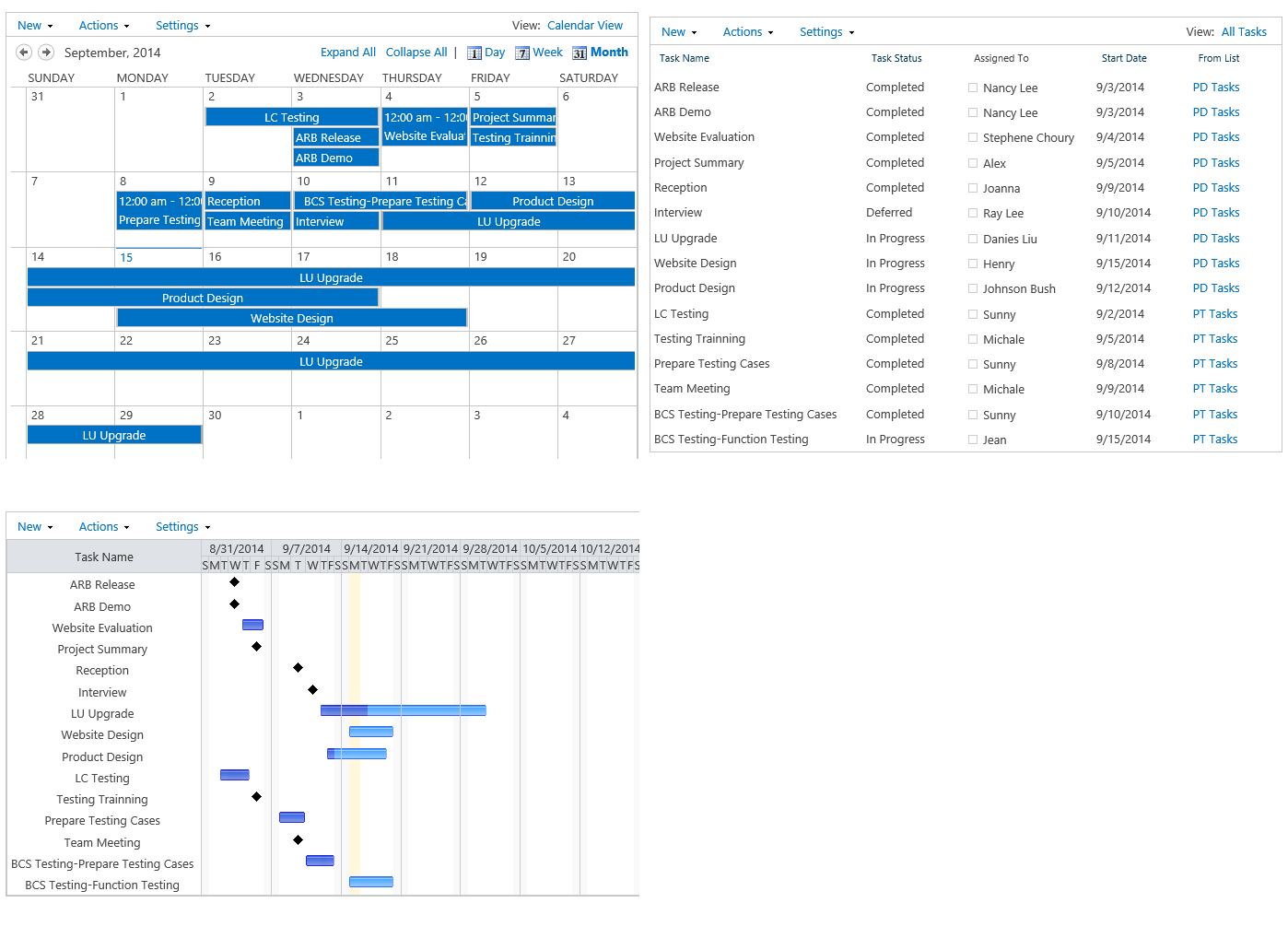
A choice of Standard, Calendar or Gantt view is available to filter, sort or group your data in the list rollup web part.
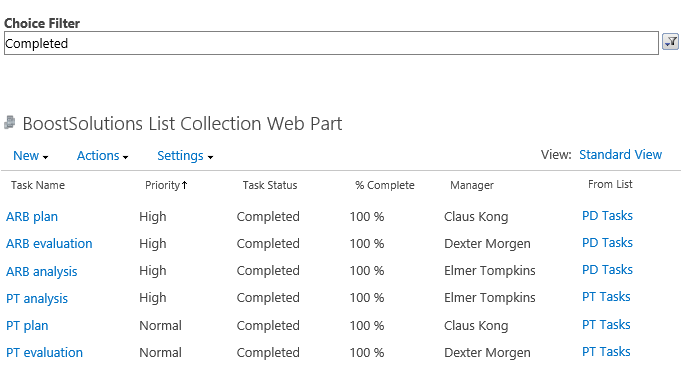
SharePoint List collection supports two types of filter web part: Choice and Text.
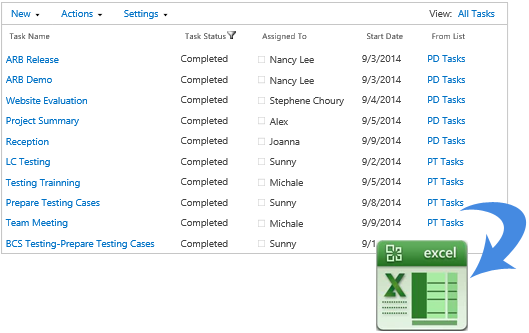
Another convenient way to view your list SharePoint list is to export it as an Excel file. Also works with Calendar or Gantt View.
| Feature List | List Collection | SharePoint |
|---|---|---|
| Collect SharePoint lists/items from different sites to display in a single data view | ![]() |
![]() |
| Create Standard View, Calendar View, and Gantt View | ![]() |
![]() |
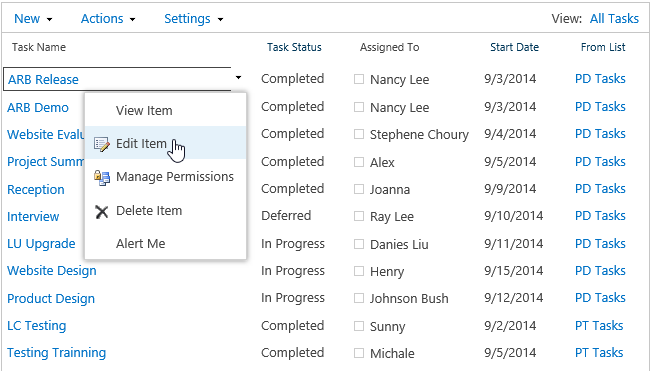
| Create and manipulate items as functional in (out-of-the-box) SharePoint List View | ![]() |
![]() |
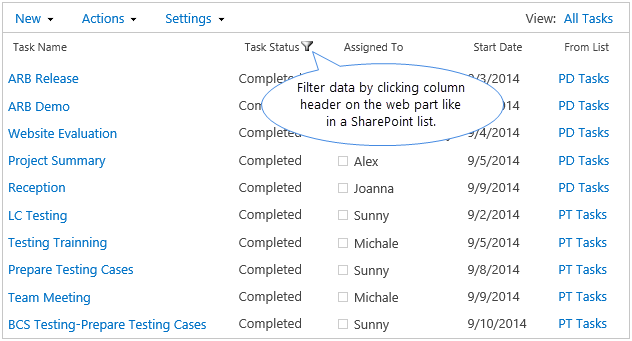
| Filter and sort items according to header of columns | ![]() |
![]() |
| Support filtering by other filter-provided web part | ![]() |
![]() |
| Export data to MS Excel file | ![]() |
![]() |
| Display or hide SharePoint list items in Calendar View and Gantt View by filtering | ![]() |
![]() |
| Features folder-selection checkboxes when collecting items | ![]() |
![]() |
| Improved version 3.0 faster in performance |
![]() |
![]() |
Allows business users to import an Excel spreadsheet into SharePoint list and manually map data fields.
Allows users to sync lists in a same or different site and syncs any item creation, modification, and deletion from source list to the target list and also sync modifications from target list back to the source list.

SharePoint List Collection is a Web Part which can collect lists from different sites to display in a single grid view. It can also create different views in list collection web part as in lists.
View SharePoint List Collection 3.0 performance benchmark.
The following example will show how to use SharePoint List Collection.
There are two lists in different sites.


3. Add SharePoint list collection web part
Open the page to which you want to add list collection web part. Click "Edit Page" on "Site Actions menu".
Then, click "Add a Web Part".
Choose cross-site collection web part, and click "Add".
Exit Edit Mode, and cross-site list collection web part has been added on the page.
4. Add SharePoint list collection web part
On the Settings menu, click "Add collection part".

On "Add collection part page", select the site, list and view.

Select select columns, and click "OK".
After selecting columns, return to the front page, the items from different lists are now displayed on list collection web part.

5. Create View for list collection web part
Click "Create View" in the View menu or in the Settings menu.
In "Choose a view format" section, click "Standard View".
In "Name and Audience" section, type a view name, and choose View Audience.
In "Filter" section, choose the lists and list view name.

Select the columns, and specify the display order in the view.
Then, in "Edit Menu" section, select the column linked to "Edit Menu".

In "Sort section", choose which column to sort and specify the sort order.

In header filter section,do not this checkbox to disable filter on header of columns.

In "Group By" section, select the column to determine how to group items in the view.

In "Item Limit" section, type the number of items to display per page, default value is 50.
Then, click "OK". Go to list collection web part page, and the view is created as following.

Click "Gantt View" in "Choose a view".
Specify "View Name" and "View Audience".
Select the list and view to display in the view.
Specify "Title", "Start Date", "Due Date", and "Percent Complete" fields.

In the header filter section,click checkbox Enable filter on header.

Specify the columns and their order in "Columns" section.
Then, click "OK" the Gantt View is as following.

In "Choose a view" section, click Calendar View.
Specify View Name and View Audience in the Name and Audience section.
Select the list and view in "Filter" section.
Specify view title and sub heading in the calendar Columns section,And select Don’t display list items checkbox.
Note:What can “Don’t display list items” checkbox do? If you click this checkbox, the Columns, Edit Menu, Header Filter and Group By sections will be hidden in the configuration part.

In "Default Scope" section, choose which scope type you want.

In "Time Interval" section, specify "Begin" and "End" date.

Then, click "OK". The Calendar View is as following.
6. Filter on header of columns
You can filter items according to conditions in the standard, project and calendar view. For instance, you want to display items which are assigned to Lily from the Task Schedule in the Gantt View.
Click the arrow in the "From List" column header of the web part, choose "Task Schedule".

Click the arrow in the Assigned to column header, choose Lily.

The following is the result:

The filter function is the same as standard and calendar view.
You can manipulate items directly on list collection web part. Click the arrow that appears on the column and links to "Edit Menu", you can manipulate the item as in list view web part.

The manipulation is the same both in gantt view and calendar view.
List collection web part supports adding items to different lists.
On "New" menu, you can choose which list you want to add item to. For instance, you can add an item to "Task Schedule" list in SharePoint Lists site.

The new item is added to "Task Schedule" list and also displayed on the calendar view of list collection web part.

Note: The new icon only display on the column which is linked to edit menu.
The operation is the same in both calendar and Gantt view.
SharePoint List collection supports two types of filter web part: Choice and Text.
On the Site Actions menu, click Edit Page. Add the choice filter web part on the page.
Click Modify Shared Web Part in the
menu, and specify the Filter Name and choice options in the box.
Click OK to save the configuration. And click the Web Part menu
go into Send Filter Values To, click the web part which you want to filter. Here we choose Cross-site list collection web part.

In the Configuration Connection dialog box, choose the Status column in dropdown list.

Click Finish button, and exit from the Edit Mode page.
Click browse button on the web part.
Choose Not Started radio button in the Select Filter Value(s) dialog.

Then click OK. The filter result is following.

The steps to configure Text Filter web part is the same as steps of configuring Choice Filter web part. You just need to input filter name and connect it to the column.
Input the filter value in the textbox, then the result is below.

First, select the view which you want to export to Excel document, supposed that we want to export the Completed View. Then click the Export to Excel on the Actions menu.
Specify the name and place, and click Save button.
The function is available on both calendar and Gantt view
Our Customers
Trusted by over 4000 companies