SharePoint List Sync is an add-on feature for synchronizing document files or lists between source and target lists among SharePoint collaborators. Real-time or manual syncing happens when documents or items are modified, deleted, checked in or approved.
1. In a project management situation, List Sync helps a Project Manager manage and sync several teams' documents and tasks by setting up a source list of files and a lot of target lists for collaborators in SharePoint. Any information the Project Manager changes in his source list will be updated in the target team's lists. It would be clear to each collaborator or team of what his tasks and requirements are. The teams can modify and update their own tasks and they will be synced back to the Project Manager's source list.
2. Work effectively among SharePoint collaborators by syncing documents, folders and other files within your workgroups as files that are edited, modified, revised or added are automatically synced within the group for continuous work progress.

3. Manage files efficiently among users by mapping which items or columns are to be synced. Items added, modified, deleted, checked in or approved will be synced actively. Attachments can also be synced; as well as syncing item folder's structure.

4. Modifications made from target lists can be synced back to source lists when Reverse Sync is activated.
5. View different teams' development in an aggregate list by combining different collaborators' lists into a Union List. Specific columns can be selected to be synced.

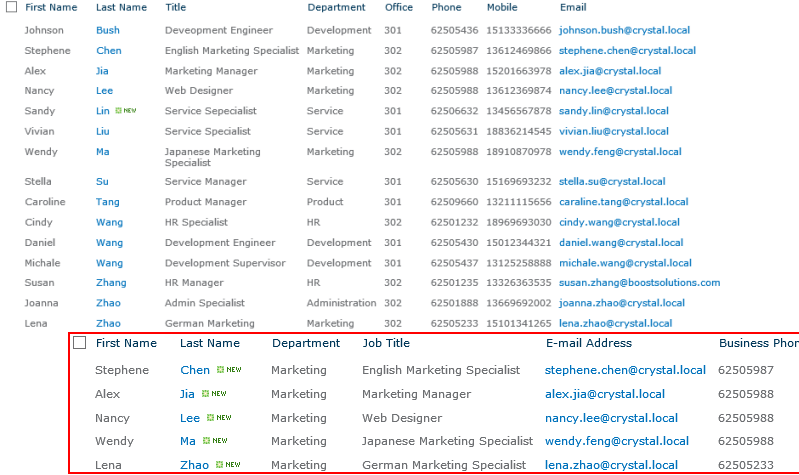
6. Large lists may also be separated and sorted into different lists if it matches sync conditions from the source.
7. Track and record changes by setting a log schedule or by downloading a Microsoft Excel log file every time a sync is made.

SharePoint List Sync Features
| Feature List |
List Sync |
SharePoint |
| Automatic sync from source to target (Real-time Sync) |
 |
 |
| Sync modifications from target to source list (Reverse Sync) |
 |
 |
| Sync user-specified columns |
 |
 |
| Combine two or more lists to create a new list |
 |
 |
| Split one list into different lists based on conditions |
 |
 |
| Sync only items that match conditions |
 |
 |
| Join two lists through lookup column |
 |
 |
| Sync permissions from source to target lists on items |
 |
 |
| Optional sync source item's folder structure |
 |
 |
| Optional sync attachments |
 |
 |
| Create sites with saved list sync settings from saved site templates |
 |
 |
| Logs for each sync |
 |
 |
Roll up pertinent list items from multiple lists across a site collection into a single, auto-updating data view that you can filter, group, sort and display according to your specifications.
Gives administrators an easy way to synchronize user account/computer profile information from Active Directory to a SharePoint list.
Enables SharePoint users to copy and move documents or list items across SharePoint libraries and lists in an instant!
1. Introduction to SharePoint List Sync:
SharePoint List Sync is a SharePoint add-on that allows users to sync lists in a same or different site.
SharePoint List Sync syncs any item creation, modification, and deletion from source list to the target list and also sync modifications from target list back to the source list. List Sync activity can be tracked and viewed with downloadable activity logs in Microsoft Excel file.
Please note: With the trial version, it supports up to 20 records/items ONLY.
2. Sync profile
A sync profile is a set of commands and conditions set by the user for syncing items from source list to target list.
2.1. Creating a sync profile
a. Click Site Actions > Site Settings

b. Click List Sync Settings

c. Click Add New Profile to create a new sync profile

2.2. Setting up Sync Profile
2.2.1. Type a Profile Title
This is the title of your sync profile (e.g. Documents Sync, Budget Folders etc.).

Tip: Try to name your profile words that are relevant to the sync conditions or files so it would be easier to distinguish your profiles in the future.
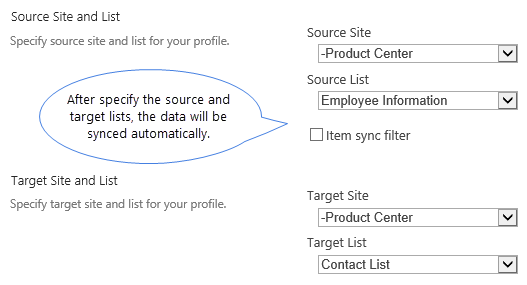
2.2.2. Select Source Site and List
Choose specific Source Site and List from the dropdown menu. Information transmitted to the target list is referred from here.
Note: You can sync all SharePoint lists except: Discussion Board, Survey List, Wiki Page Library, External List, Slide Library, and SharePoint default Gallery (Web Part Gallery, List Template Gallery, Master Page Gallery, Theme Gallery)

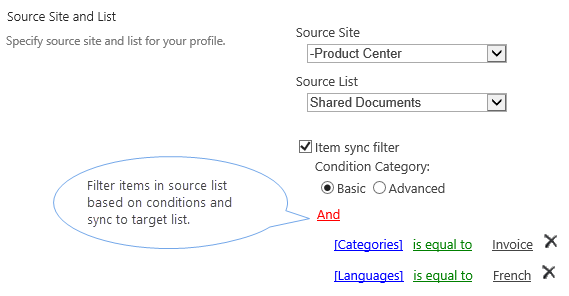
2.2.2.1. Item Sync Filter
This is a sync feature where items are only synced when it matches conditions in source list. By checking the Item sync filter, you may choose between a Basic Condition and Advanced Condition.

2.2.3. Target Site and List
This is the location where the Source list would sync its items or documents to.

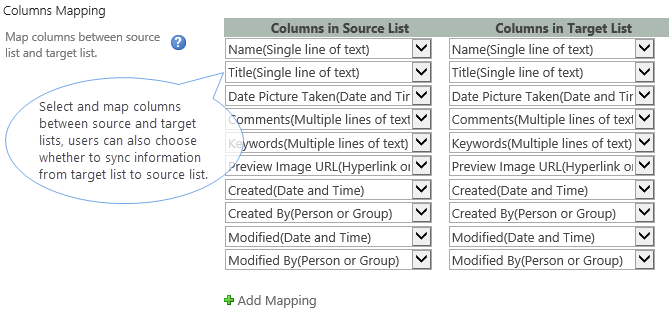
2.2.4. Columns Mapping
Several dropdown menus for Source List and Target List are available to map the sync to. Other columns can be synced reversely.
Reverse Sync –if this checkbox is ticked, whatever modifications made on the Target List will be synced back to the source list for this column.
However, some columns cannot Reverse Sync, for the reason:
- If Source Column can be found in Target Column but a column in Target cannot be found in Source;
- Columns that are found only in Source List.
Tip:You can start mapping which columns to sync once the Source and Target lists are set.

Generally, source columns can be synced only to related target columns.
Here is a quick look at which target folders are available to sync for each source
| Source/Union List Column Type |
Target List Column Type |
| Single Line of Text |
Single Line of Text; Plain Text; Rich Text; Enhanced Rich Text |
| Plan Text |
Plain Text; Rich Text; Enhanced Rich Text |
| Rich Text |
Rich Text; Enhanced Rich Text |
| Enhanced Rich Text |
Enhanced Rich Text |
| Choice |
Single Line of Text; Plain Text; Rich Text; Enhanced Rich Text; Choice; Choice (Multiple Value) |
| Choice (Multiple Value) |
Single Line of Text; Plain Text; Rich Text; Enhanced Rich Text; Choice (Multiple Value) |
| Number |
Single Line of Text; Plain Text; Rich Text; Enhanced Rich Text; Number |
| Currency |
Single Line of Text; Plain Text; Rich Text; Enhanced Rich Text; Currency |
| Date and Time |
Single Line of Text; Plain Text; Rich Text; Enhanced Rich Text; Date and Time |
| Lookup |
Single Line of Text; Plain Text; Rich Text; Enhanced Rich Text; Lookup; Lookup (Multiple Value) |
| Yes/No |
Single Line of Text; Plain Text; Rich Text; Enhanced Rich Text; Yes/No |
| Person and Group |
Single Line of Text; Plain Text; Rich Text; Enhanced Rich Text; Person and Group |
| Hyperlink and Picture |
Single Line of Text; Plain Text; Rich Text; Enhanced Rich Text; Hyperlink and Picture |
| Managed Meta Data |
Plain Text; Rich Text; Enhanced Rich Text; Managed Meta Data |
| Recurrence |
Single Line of Text; Plain Text; Rich Text; Enhanced Rich Text; Recurrence |
| Full HTML content with formatting and constraints for publishing |
Enhanced Rich Text; Full HTML content with formatting and constraints for publishing |
| Image with formatting and constraints for publishing |
Enhanced Rich Text; Image with formatting and constraints for publishing |
| Hyperlink with formatting and constraints for publishing |
Enhanced Rich Text; Hyperlink with formatting and constraints for publishing |
| Content Type |
Single Line of Text; Plain Text; Rich Text; Enhanced Rich Text; Content Type |
Listed below are columns that can only be found in Source List
- Site Link;
- List Link;
- Item Link;
- ID;
- Workflow Status;
- Version;
- Approval status;
- Check In comments;
- Folder Child Count;
- Item Child Count;
- Check Out To;
- File Size;
- Picture Size;
- Picture Height;
- Picture Width.
Other special column
- Modified: If target column is "Modified", then source column can only be just "Modified"; reverse sync is not possible.
- Modified By: If target column is "Modified By", then source column can only be just "Modified By"; reverse sync is not possible.
- Created: If target column is "Created", then source column can only be just "Created"; reverse sync is not possible.
- Created By: If target column is "Created By", then source column can only be just "Created By"; reverse sync is not possible.
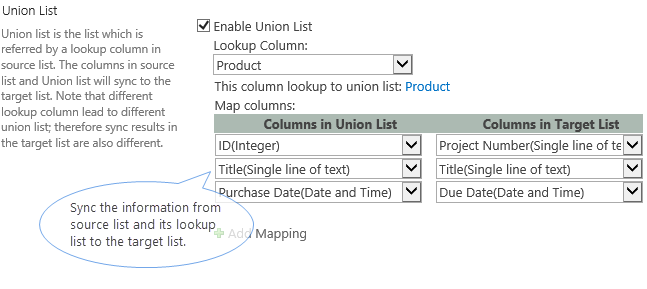
2.2.5. Union List
Union list is the list which is referred by a lookup column in source list. The columns in source list and Union list will sync to the target list.
How to set up Union List
Tick Union List checkbox to enable Union List function. Select Lookup Column in the source list from the dropdown menu. To map the union list, choose from the union list which columns you want to map with target list.
Note that different lookup column lead to different union list; therefore sync results in the target list are also different.

Example:
You have two lists: List A and List B. List A has a lookup column which gets information from List B. In this way, we call List A - Source List, and List B - Union List. Then, you can combine information from List A and List B to List C, which we call it target list. This feature makes one item in list C created when synchronizing is in function. If you set up sync setting for List A and List B with List C respectively, two items will be created in List C when synchronizing.
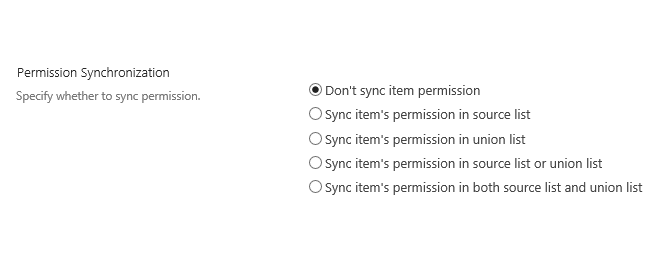
2.2.6. Permission Synchronization
This is a setting where you can set access permissions among your collaborators in case there is certain information you want to restrict.

2.2.7. Others
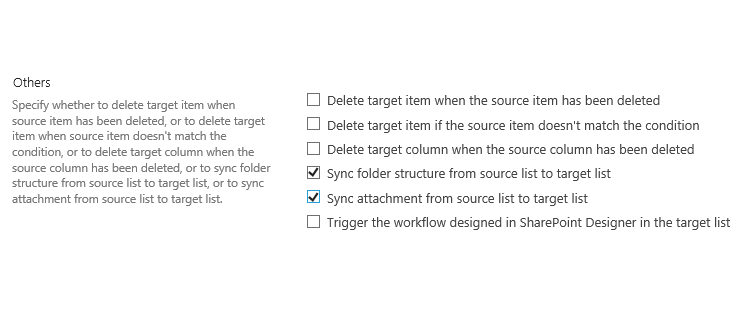
There are five checkboxes where you can choose conditions when to sync or delete target item, target column, target folder structure and attachment according to Source activity.

2.2.7.1. Each condition explained below:
-
Delete target item when the source item has been deleted
When a source (e.g. folder) has been deleted, the target folder would also be deleted
-
Delete target item if the source item doesn't match the condition
The condition here means the conditions set on Item Sync Filter.
-
Delete target column when the source column has been deleted
Target column will also be deleted when the source column is deleted.
-
Sync folder structure from source list to target list
A folder structure is how the files are organized in the certain sync folder. If you tick the checkbox, the folder structure will be synced to the target list as well as the files inside. If you do not tick the checkbox, only the files inside the folder will be synced to the target list.
-
Sync attachment from source list to target list
If an item in the source list contains attachments, these attachments will also be synced to the item in target list.
2.2.8. Log Settings
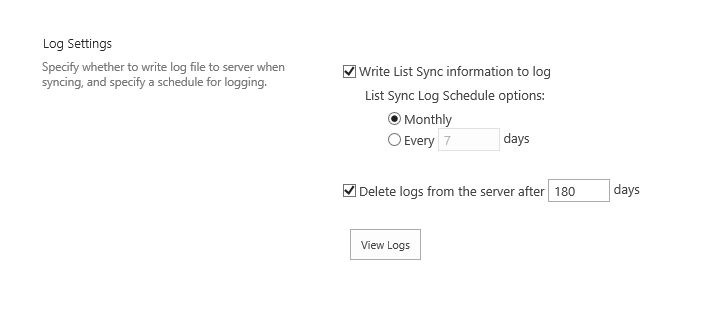
A log is a written record of List Sync activities. Only one sync log is available to download as Excel file each time you sync a list.
To log your sync activities, tick the checkbox for Write List sync information to log. Schedule your log activity monthly or choose between 1-99 day(s) sync log interval.

You may opt to delete logs from the server by ticking the checkbox for Delete logs from the server and input the number of days before the deletion.

3. Sync Now
SharePoint List Sync automatically updates source and target lists in real-time.
However, you may choose to manually sync your source and target files yourself by viewing the List Sync Main Settings Page (Site Actions > Site Settings > List Sync Settings). Hover the profile you want to sync and a dropdown menu would appear, click the dropdown menu and select Sync Now to update your list.

Top