Our Customers are loving them :
Current Page: Home > All Products > Web Parts > Administration > AD Administration
AD administration is a SharePoint web part which user can be empowered to change the OU structure and other users’ information. Delegating the user management task to the department manager, the IT administratorcan pay more attention to IT hardware and network security.
Team leader can use this web part tochange their team members’ properties directly in the SharePoint environment.
Ver. 1.8.508Compatible with SharePoint 2007, 2010, 2013
Package Deal: $3695, ONLY $2859!
Assign limited AD administration permissions to junior administrators so they can create, edit, rename, or delete OUs, users, groups and AD properties directly from within the web part.
This web part provides the same user experience to manage OUs, users and groups as in Active Directory.
The AD Administration web part also enables Site Managers to quickly and easily email all Site members, ensuring that everyone is notified whenever important changes are made.
Administrator can check the log file to discover if someone has too much permission or is harming user data security.
| Feature List | AD Administration | SharePoint |
|---|---|---|
| Grant any users the ability to change other people's AD properties | ![]() |
![]() |
| Grant any users with authoritative power to manage organizational units, users and groups in AD | ![]() |
![]() |
| With the permission of the administrator, users can e-mail other users or groups directly from within AD admin web part | ![]() |
![]() |
| Decide which properties to restrict from certain users | ![]() |
![]() |
| Define delegation scope and permission for each user | ![]() |
![]() |
| Display users, groups and sites in an alphabetical view, sites view, or AD organization view | ![]() |
![]() |
| Record each operation in a log file | ![]() |
![]() |
Greatly boosts SharePoint administration productivity by delegating non-system critical tasks related to AD to users, and integrating AD operations with SharePoint.
IT administrators can now authenticate users to manage their AD information directly in SharePoint.
Allows users to change their own passwords based on the password policies set by administrators. Administrators can also configure notifications to alert users before their passwords expire.
Gives administrators an easy way to synchronize user account/computer profile information from Active Directory to a SharePoint list.

Click here for the tutorial of the SharePoint 2007 version of AD Administration.
SharePoint AD Administration Tutorial for SharePoint 2010
1. Adding the AD Administration Web Part to a Site
You can add the AD Administration Web Part to any SharePoint site in your site collection. To do so, go to the page where you would like to add the web part, click Site Actions at the top of the page, and then click Edit Page to modify the site. Click on the Insert tab under Editing Tools, and then click Web Part.

In the Categories box, select BoostSolutions Web Parts, and then add the web part by selecting BoostSolutions AD Administration Web Part and clicking Add.
On the Central Administration homepage, click BoostSolutions Software Management.Under AD Administration, you will find access to the main page displaying links to:
Open the site on which you want to add AD Administration. Then, click Edit Page on the Site Actions menu. Under Editing Tools, click the Insert tab, and then click Web Part.

In the Categories section, click BoostSolutions Web Parts, and then click Add. An AD Administration web part will be added on the page.
If the web part was not configured in Central Administration, then the web part should be displayed as below.

The web part will only be displayed to users with the right permissions.
3. Configuration of AD Administration in Central Administration
3.1 AD Administration General Settings
The General Settings of AD Administration give the administrator the option to specify the configuration of logs and SMTP Server settings.

The Log section allows the administrator to set the log options.
The AD Administration Log Schedule Options specify how often a new log file should be created. It can either be set to create a new file monthly, or after a number of days to be specified by the administrator.
The Delete logs checkbox gives the user the option to delete the logs after a specified number of days.
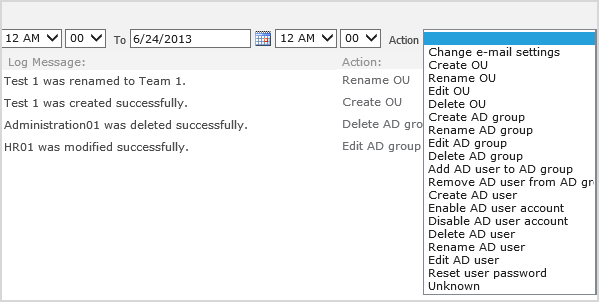
The View Logs button opens up a new window displaying all changes made with AD Administration..

This window first displays all changes made. However, it is possible to filter these results based on the time and date. Another option is to filter the log events based on the action performed with the AD Administration web part.

To display more information about an entry, click on the Details link on the right side in the Log Details column. This will display details such as the original value and the new value of the changed property.

The SMTP Server Settings section lets the administrator customize the SMTP settings for the AD Administration web part.
There is no need to customize these settings if the SMTP server settings are already configured in the SharePoint Central Administration. So the administrator just has to change these settings when he wants to specify customized settings for outgoing emails.
Everything from domain name/IP, over port, display name, from address, to reply-to address can be customized. The administrator can also set to use either the default Windows login credentials or that of another user. The settings also allow enabling SSL connections.
3.2 User Permissions for AD Administration
Initially, the User Permissions for AD Administration screen is empty, as no user has been added.Click Add Users to create a role for a user or a group.

In the new window, the administrator can specify for which users or groups he wanted to specify this role. This is done with a default SharePoint people picker.
After that the administrator has to specify which organizational units (OUs) the users or groups should have permissions for to manage using the AD Administration web part. To do this, he has to specify the domain name and the administrator's credentials. Click Load to load the OU tree based on these login credentials.
In the OU tree the administrator can select the OUs the users or groups can manage by checking the appropriate checkboxes.
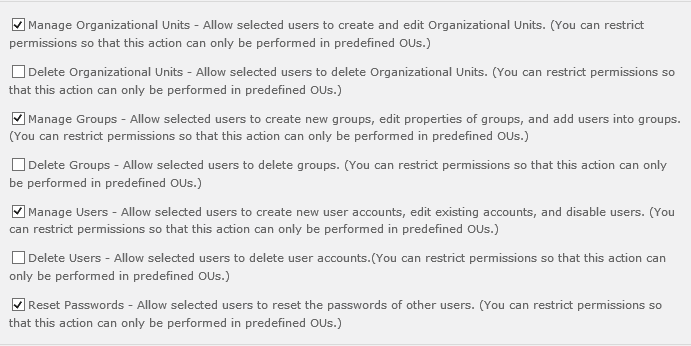
After the OUs have been selected, the administrator has to specify what permissions the users or groups should have for the selected OUs. For this, AD Administration provides several checkboxes for each administrative task. Activate the checkboxes according to the requirements of your organization.
Tasks to be performed by using AD Administration are:
The administrator can also configure the web part layout and the AD properties settings. See Web Part Layout and AD Properties Settings for further information.
Click Save to have the user added to AD Administration.
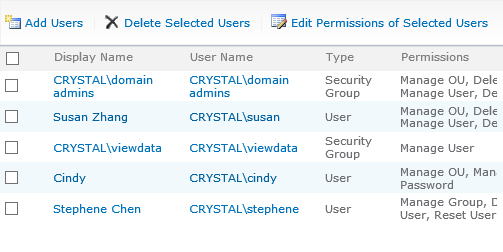
After the user has been added, he is displayed in the list with his Display Name, User Name, Type, and Permissions for the web part.

The user's permission role can now be selected to be deleted or edited.
3.3 Web Part Layout and AD Properties Settings
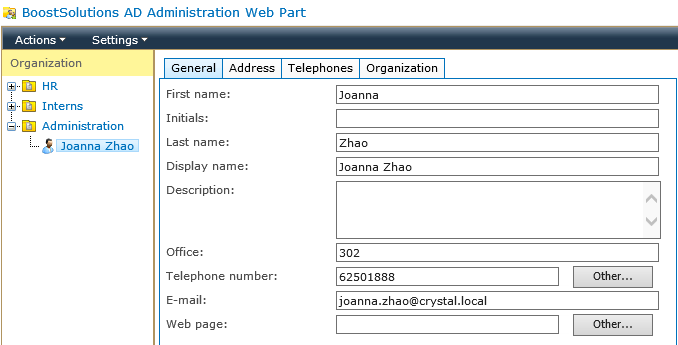
On initial setup, AD Administration will provide four tabs, and include default and AD properties. For each user or group set up to use AD Administration, this design can look different.

To create new tabs, click New tab.
The field will change and display a field to edit the tab name. Enter the name for the new tab, and press enter to confirm.
To change the current display name of a tab, click on the pencil icon
, and then type in a new name.
To add new AD properties to the web part, click the Add New Property button that is available under each tab.
To delete AD properties from the web part, click on the red cross
on the right side of the property.
A popup window will open to make sure that the property really should be removed.
To display property details, click the pencil icon
on the right side of the property. This will bring up the Edit Property popup window.
The Appearance settings allow the administrator to specify how the users should enter the information for the AD properties. If Textbox is selected in the Display style dropdown box, the administrator can select how many rows are available for editing. If DropDownList is selected, the Appearance settings box will change to display a button to specify the values.
After that the administrator has to specify which OU the users or groups should have permissions for to manage using the AD Administration web part. To do this he has to specify the domain name and the administrator's credentials. Based on these login credentials the OU tree is loaded.

Click the Set button under List values to open up the List values – Webpage Dialog in which the administrator can specify which values are available, modify values, or delete values, if necessary.
AD Administration supports drag and drop of items in the web part settings allowing the layout and setup of the tabs and properties to be easily changed.

After installing AD Administration, the View User Permissions window will be empty as no permissions have yet been set up.
Once permissions have been set up, this location can be used to easily review permissions for users or groups. The window displays the display name, the user name, the type of object (e.g. user, security group, etc.), where permissions were inherited from, and the permissions themselves.

4. The AD Administration Web Part
Based on the permissions set up with AD Administration, the user will have different access rights for the web part. Logging on as Administrator, the web part displays all OUs available. The tabs will be displayed as previously set up in the AD Administration settings in Central Administration.

Logging on as Catherine will only display the Users OU, because her account was set up to only display the Users OU. In addition, a different user interface for the user properties is displayed as the tabs are arranged in a different order.

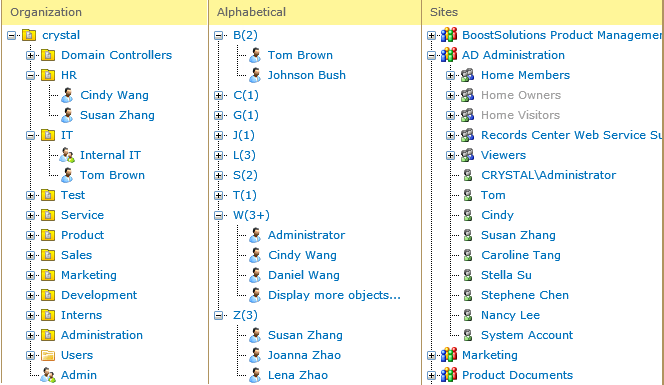
AD Administration offers 3 different views for displaying the structure and users in it:

This is the default view for AD Administration. Here the information in AD is displayed according to the OU structure in AD. The user can see the OUs as well as the groups and users within them given the appropriate permissions.
This view displays all users alphabetically, sorted by their last name. For each letter the number of users with their last name beginning with this letter is displayed right of the letter.
If a SharePoint environment contains many users, the Alphabetical View will display users summarized in object sets. This can be configured in the Appearance Settings of the web part.
Please note that this functionality does not fully support Asian languages.
The Sites View displays the users and groups according to their membership to sites in the SharePoint environment.
4.2 The AD Administration Settings Tab
The AD Administration Settings tab allows the user to change the settings for:

Depending on the permissions of the user, fewer options might be available. Please note that users without the permission in SharePoint to update the web part will not be able to see the Settings tab.
Here users can specify custom SMTP settings that are different from those configured in the AD Administration Settings in Central Administration. These settings will be user-specific, so different users can create different settings.
The actual configuration works in the same way as in the AD Administration General Settings in Central Administration.
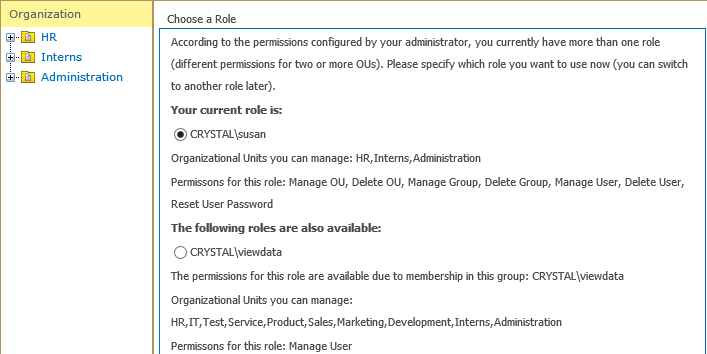
If a user has different permissions for two or more OUs, he can specify which role he wants to use. Multiple roles are usually available because the user is part of several groups for which permissions for AD Administration were set up.
The user initially has to specify which role to use, but he can always change this selection by returning to the window.
The Appearance Settings specify how many users should be displayed in one set of objects in the Alphabetical View. This makes the view more easily manageable, and reduces load time to pull information from AD into the web part.
So for a large number of users with their last name beginning with the same letter, the Alphabetical View will look similar to the following.

To display more objects, AD Administration provides a "Display more objects..." link. The "1-3" or "4-4" links can be expanded or collapsed as required. Multiple object sets can be expanded if necessary.
Please note that for optimal performance, it is recommended that each set contains no more than 1,000 objects.
5. Managing Active Directory with the AD Administration Web Part
5.1 Creating Organizational Units
AD Administration offers 2 ways to create OUs:
The Create OU window will then be displayed on the right side of the web part.

Once all necessary information is added, click the Save button to confirm. A popup window will ask for confirmation whether or not this OU information should really be saved. Clicking OK will finalize the process and display a confirmation message in the web part.
AD Administration offers 2 ways to create groups:
The Create Group window will then be displayed on the right side of the web part.

Here the user can select the group name, the pre-Windows 2000 group name, as well as the group scope and the group type. The pre-Windows 2000 group name will be added automatically when the group name is entered. It ensures compatibility with pre-Windows 2000 system environments.
Once all necessary information is added, click the Save button to confirm. A popup window will ask for confirmation whether or not this OU information should really be saved. Clicking OK will finalize the process and display a confirmation message in the web part.
AD Administration offers 2 ways to create users:
The Create User wizard will then be displayed on the right side of the web part.

In the first screen, the name and the logon name for the user has to be specified. Proceed by clicking Next.

The next screen displays the password settings for this user. Set the password, and then click Next to continue.

In this screen, the user is added to groups in AD. Complete the user creation by clicking the Finish button.
At this stage, the user has only been added to AD, he has not yet been added to SharePoint. To add the user to SharePoint, click Click here to add this user to SharePoint in the next screen. This will open up a new browser window.

Enter the user name or look him up. Then select the permission level. If required, enter a Personal Message. Once finished, click OK.
5.4 Managing Organizational Units
AD Administration offers 2 ways to delete OUs.
A popup window will then open up asking for confirmation whether or not this OU should really be deleted. After clicking the OK button the OU will be removed.
AD Administration offers 2 ways to rename users:
The OU to be renamed now becomes editable. Type in a new name for the OU, and then click any area outside the editing field to have it renamed.
AD Administration offers 2 ways to refresh OUs:
This will refresh the OU, and expand it if it was collapsed before.
5.4.4 Editing AD properties of OUs
AD Administration offers 3 ways to display and change the AD properties of OUs:
After clicking the Save button a popup will appear asking for confirmation whether or not these changes should really be saved. Clicking OK will display a confirmation notification in the lower left corner of the edit OU window of the web part.

AD Administration offers 2 ways to delete groups:
A popup window will then open up asking for confirmation whether or not this group should really be deleted. After clicking the OK button the group will be removed.
AD Administration offers 2 ways to rename groups:
The group to be renamed now becomes editable. Type in a new name for the group, and then click any area outside the editing field to have it renamed.
5.5.3 Editing AD properties of Groups
AD Administration offers 3 ways to display and change the AD properties of groups:

In the Group tab, the name of the group can be changed. Also, Group scope and Group type are displayed once more. Depending on the current group scope and type, these values might not be available for changing.
Click Save to save the changes.
Click the Members tab to display all current members of this group.

Here you can add and delete users to and from this group.
To add a user to the group:
Click the Add button. A people picker will then pop up. Enter a user name, or look him up from the directory.Confirm the user to be added by clicking OK.
To delete a user from the group:
Select the user you wish to delete from the group, and then click Delete. A popup window will appear, asking whether or not this user should really be removed from this group.
Confirm the user to be deleted by clicking OK.
AD Administration offers 2 ways to add users to a group of users:
The Add User to a Group window will be displayed on the right side of the web part. Select the groups to which he needs to be added.

Once the groups have been selected, click the OK button to confirm. This will finalize the process and display a confirmation message in the web part.
AD Administration offers 2 ways to disable user accounts:
A popup window will open up asking for confirmation whether or not this user should really be disabled.
Proceed by clicking the OK button.
The account of the user is now disabled; this is indicated by a small red cross next to user icon as shown below:

To enable the user again, repeat the same procedure. The menus will instead display Enable Account.
5.6.3 Resetting User Passwords
AD Administration offers 2 ways to reset passwords of users:
The Reset Password window will be displayed on the right side of the web part.

This screen displays all password policies as defined in AD. It also offers an input box for the new password, and another to confirm the password. Once the passwords have been entered, click the Reset button to proceed. The window will refresh and a success message will appear in the lower left corner.
5.6.4 Editing AD Properties of Users
AD Administration offers 3 ways to display and change the AD properties of users:

Edit the properties of the user in window on the right, and when satisfied click Save.
A popup window will ask for confirmation whether or not this user information should really be saved. Clicking OK will finalize the process and display a confirmation message in the bottom left corner of the web part.
AD Administration offers 2 ways to delete users:
A popup window will then open up asking for confirmation whether or not this user should really be deleted. After clicking the OK button the user will be removed.
AD Administration offers 2 ways to rename users:
The user to be renamed now becomes editable. Type in a new name for the user, and then click any area outside the editing field to have it renamed.
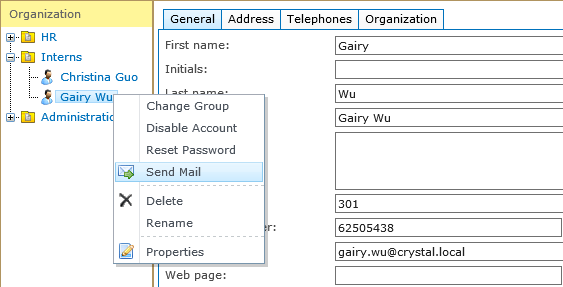
AD Administration provides the option to send emails to users or groups from within the web part.
AD Administration offers 2 ways to open the Send E-mail window for users:
This will bring up the Send E-mail window on the right.

Enter the email contents and the subject of your message. You can send the email using Rich Text Formatting or in Plain text.
The "To:" field contains the email address of the user, if specified. Otherwise it will be blank.
After clicking the Send button the window will display a progress window, then a confirmation window will be displayed, showing to which address the email has been sent.
AD Administration offers 2 ways to open the Send E-mail window for groups:
This will bring up the Send E-mail window on the right.

Enter the email contents and the subject of your message. You can send the email using Rich Text Formatting or in Plain text.
The "To:" field contains the email address of the user, if specified. Otherwise it will be blank. The user can also check the Send to all members of this group checkbox to send the email to everybody in the group..
After clicking the Send button the window will display a progress window, then a confirmation window will be displayed, showing to which addresses the email has been sent.
Languages Supported: English, Japanese, German
System Requirements
For SharePoint 2013:
| Operating System: |
Microsoft Windows Server 2012 Standard or Datacenter X64 Microsoft Windows Server 2008 R2 SP1 |
|---|---|
| Server: |
SharePoint Release: - Microsoft SharePoint Foundation 2013 or Microsoft SharePoint Server 2013 - Microsoft .NET Framework 4.5 |
| Browser: | Microsoft Internet Explorer 8/9/10 Mozilla Firefox supported Google Chrome supported |
For SharePoint 2010:
| Operating System: | Microsoft Windows Server 2008 x64 Microsoft Windows Server 2008 R2 |
|---|---|
| Server: | SharePoint Release: - Microsoft SharePoint Foundation 2010 or Microsoft SharePoint Server 2010 - Microsoft SharePoint Foundation 2010 SP1 or Microsoft SharePoint Server 2010 SP1 - Microsoft .NET Framework 3.5 |
| Browser: | Microsoft Internet Explorer 7 or greater is recommended for Advanced admin features Mozilla Firefox supported Google Chrome supported |
For SharePoint 2007:
| Operating System: | Microsoft Windows Server 2003 x86/x64 Microsoft Windows Server 2008 x86/x64 Microsoft Windows Server 2008 R2 |
|---|---|
| Server: | SharePoint Release: - Microsoft Windows SharePoint Services v3 (WSS3.0) SP2 or Microsoft Office SharePoint Server 2007 SP2 - Microsoft .NET Framework 2.0 or greater Note: This product is not compatible with SPS 2003 and WSS v2 |
| Browser: | Microsoft Internet Explorer 6 or greater is recommended for Advanced Administration features |
Technical Notes:
Release Notes
|
1.8.508.0 May 9th, 2013 |
Release Note: - Company brand updated. |
|---|---|
|
1.7.1228.1 Jan 6th, 2013 |
New Feature: - Support SharePoint 2013 |
|
1.6.1205.0 Dec 13th, 2012 |
Bugs fixed: - In SharePoint 2007, user can’t switch roles. - In SharePoint 2010, failed to create user when select 'User cannot change password' option. |
|
1.4.1223.0 1.4.1223.0 Dec 28th, 2011 |
Bug fixed: - In some cases, users cannot manage the account properties in sub domains. |
| 1.3.1125.1 Nov 30th, 2011 |
Bugs fixed: - Users in parent domain can’t be set to be the managers of the users in sub domains and vas versa. - The manager field doesn’t work sometimes. - Users who have a full-control permission cannot change the AD Administration web part settings sometimes. - An error occurs if the OU name contains some special character. |
| 1.2.1221 Dec 23rd, 2010 |
New Features: - Support German; - Can edit Manager attribute. |
| 1.1.730.1 Jul 30th, 2010 |
New Feature: - Announced compatibility with SharePoint 2010. |
| 1.0.604.1 Jun 7th, 2010 |
Initial Release |
Our Customers
Trusted by over 4000 companies
BoostSolutions, a Microsoft® Gold Certified Partner, is a leading developer of SharePoint Web Parts and add-ons.Fully compatible with SharePoint 2007, WSS 3.0, SharePoint 2010, SharePoint Server 2010, MOSS 2007, as well as SharePoint Foundation 2010, our SharePoint web parts and add-ons are designed to help businesses harness the full power of SharePoint.
Many reasons why you will love products and services from BoostSolutions, take a tour.
BoostSolutions is committed to building and fostering a beneficial relationship with our partners worldwide, join our Global Partner Program today.
Copyright© 2008-2013 BoostSolutions Co., Ltd. All rights reserved. Microsoft, Windows, SharePoint, Outlook, and the SharePoint logo are either registered trademarks or trademarks of Microsoft Corporation.